Organization view
Last updated: February 23, 2026
Overview
Organization View is a centralized dashboard in the Fable portal that gives users a bird's-eye view of their security awareness program performance across all employees. It allows admins to track engagement and risk at scale, identifying exactly which employees are overdue on training or failing phishing simulations.
Getting started
Prerequisites:
To use Organization view, ensure the following:
Permissions: You must be an authorized Fable admin or a People manager.
Data: You must have an active employee sync (e.g., HRIS integration).
How to access:
Log into the Fable App
In the main navigation sidebar, click on the new Organization tab.
The dashboard will automatically aggregate data based on your campaigns and employee list. You will see a view like below:
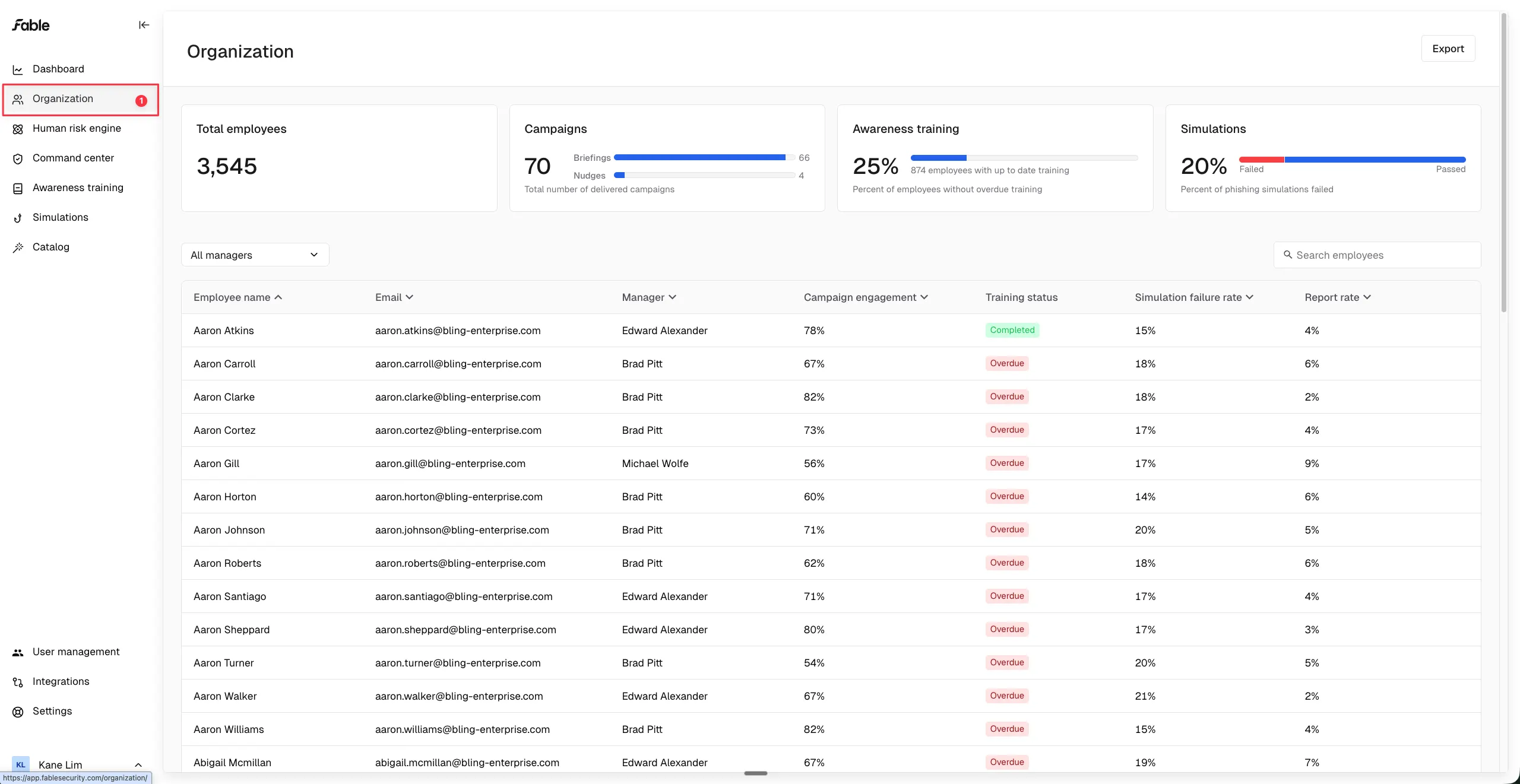
Example of organization view as an admin.
Note: If you are a people manager, you will only see aggregate data and employees who are your direct reports. Fable admins will be able to see all employees
Exploring the dashboard:
1. High-level summary
At the top of the page, you will see aggregate metrics. Note: Admins will see metrics about your entire company, while people managers will only see data relative to their direct reports.
Total Employees: the total number of employees that is ingested inside of Fable OR the total number of direct reports for a manager
Campaigns: the total number of campaigns delivered to employees, broken down by briefings and nudges.
Awareness Training Completion: The % and # of employees who do not have any overdue training. Note: this is specifically for the awareness training courses.
Simulation Failure Rate: The percentage of employees who have failed a phishing simulation.
2. Search and filter
You are able to filter to see employees that report to specific managers through the manager filter, or can search for specific employees through the search bar. The manager filter will only show direct reports of that manager, not the entire reporting chain.
3. Employee drill-down
Clicking on any employee’s name opens a Profile side panel. This provides a deep dive into that individual’s history, including:
Training and engagement overview: See the employees aggregate status on: briefings, nudges, and awareness training along with individual statuses per course.
Phishing summary: See details about an employees interaction with phishing simulations and exactly which types of attacks (e.g., credential harvesting, malicious attachments) the employee has failed.
Feedback sentiment: Review qualitative feedback and sentiment provided by the employee during their training journey.
FAQ
Why is an employee marked as "Overdue" if they have finished some of their training? An employee is flagged as "Overdue" if even one assigned awareness training is past its due date. This ensures that compliance is tracked with 100% completion in mind.
Does the manager filter show my whole department? The current filter allows you to see the direct reports of a specific manager.
What data is included in Organization view?
Organization View aggregates data from active awareness campaigns, training assignments, and phishing simulations. Note: archived trainings are included in the data as well.
How is “Awareness training completion” calculated?
This metric represents the percentage of employees who do not have any overdue awareness trainings. If an employee has even one overdue training, they are excluded from the completed percentage.
What does “Campaign performance” include in Organization view?
Campaign Performance reflects the total number of delivered campaigns across the organization.
What counts as a phishing simulation “failure”?
A phishing simulation is considered failed when an employee performs a risky action such as clicking a malicious link, entering data, opening an attachment, or replying to the simulated phishing email. Organization View breaks down failure rates by these action types to provide deeper insight into employee risk.
What is “Average time to first report”?
Average time to first teport measures how long it takes, on average, for employees to report a phishing simulation after receiving it. This metric helps organizations understand how quickly potential threats are being identified and escalated.'
How is each column defined?
Employee name: The full name of the employee in your organization
Email: The employee's work email address
Manager: The employee's direct manager or supervisor
Campaign engagement: The percentage of assigned security awareness campaigns this employee has completed
Training status: The employee's current progress in completing assigned security training courses (Not Started, In Progress, Completed, or Overdue)
Note: ‘ - - ‘ means that the employee does not have any assigned trainings.
Simulation failure rate: The percentage of phishing simulations where this employee clicked on malicious links or submitted credentials
Report rate: The percentage of phishing simulations this employee correctly identified