Creating a recurring campaign
Last updated: February 23, 2026
Where one-time campaigns send 1 phishing simulation to each employee included in the campaigns, recurring campaigns can send up to 53 simulations to each employee, based on your preferences for your phishing program.
With recurring campaigns, you can set up your whole year's worth of phishing campaigns in the time it used to take you to send 1 campaign.
Creating your campaign
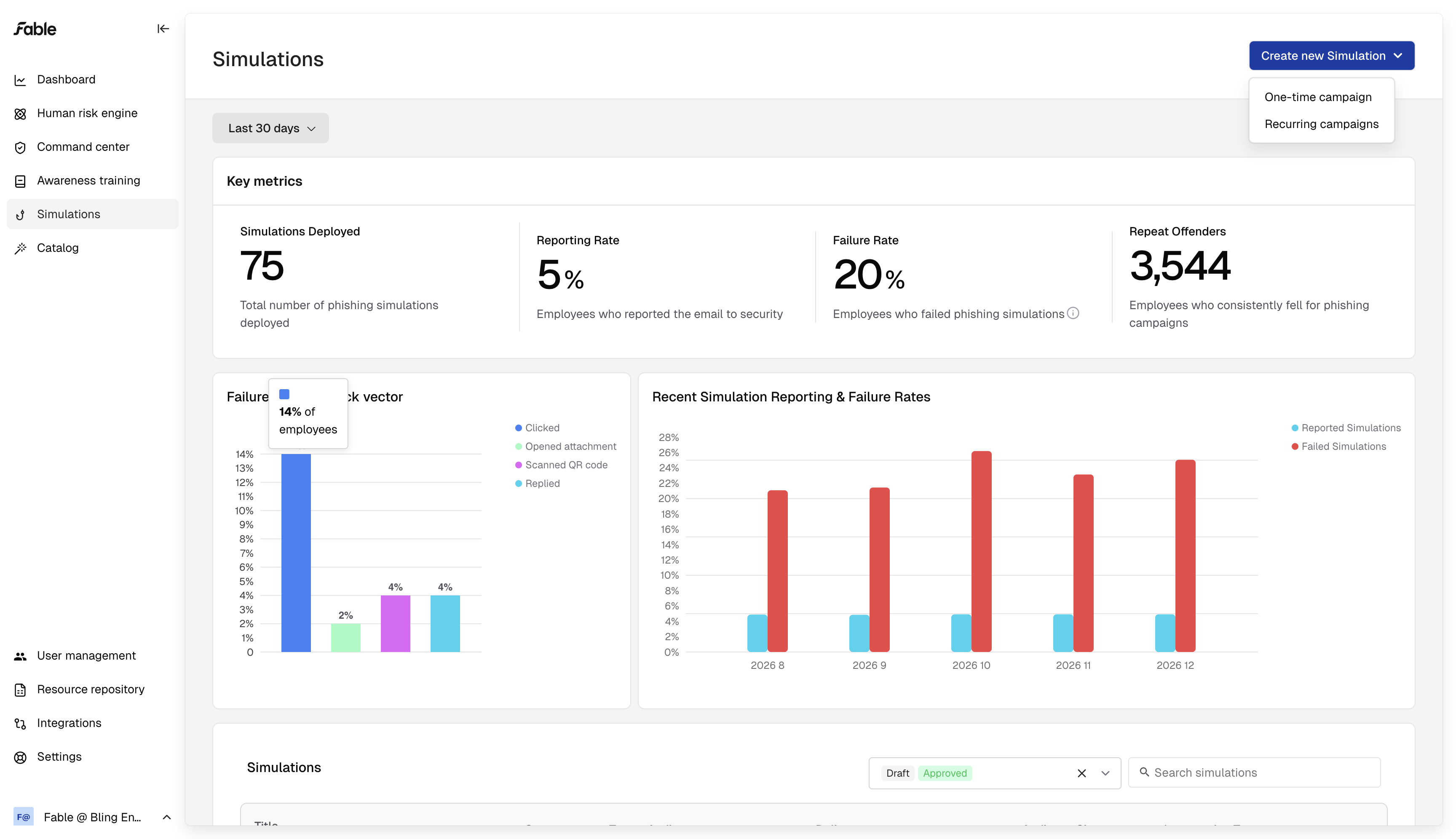
Navigate to the Simulations module with the left-hand side menu
Click "Create new Simulation" dropdown
Choose "Recurring campaigns"
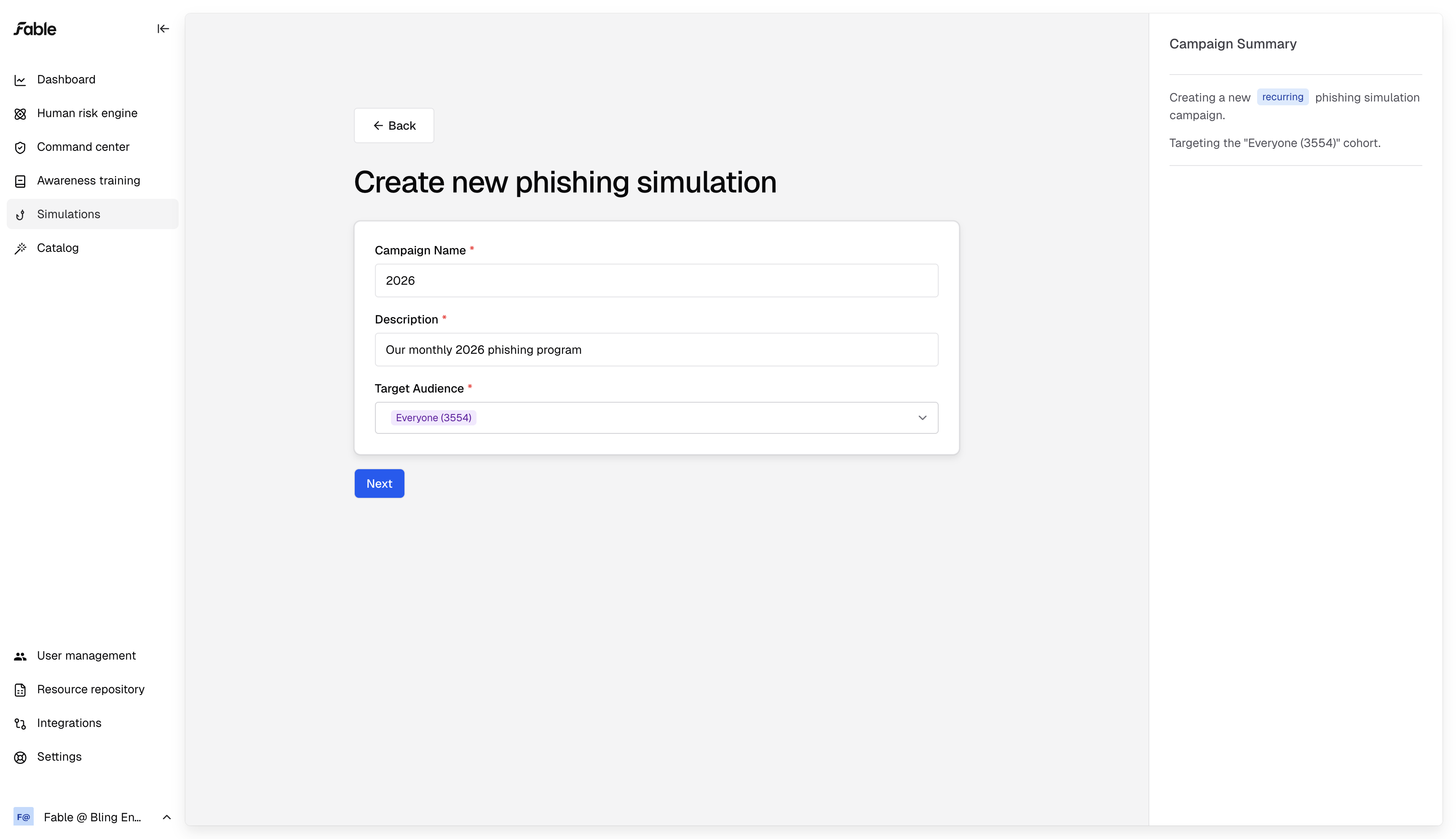
Then, enter a name, description, and audience for your campaigns.
Set your duration, frequency and delivery settings for your recurring campaigns:
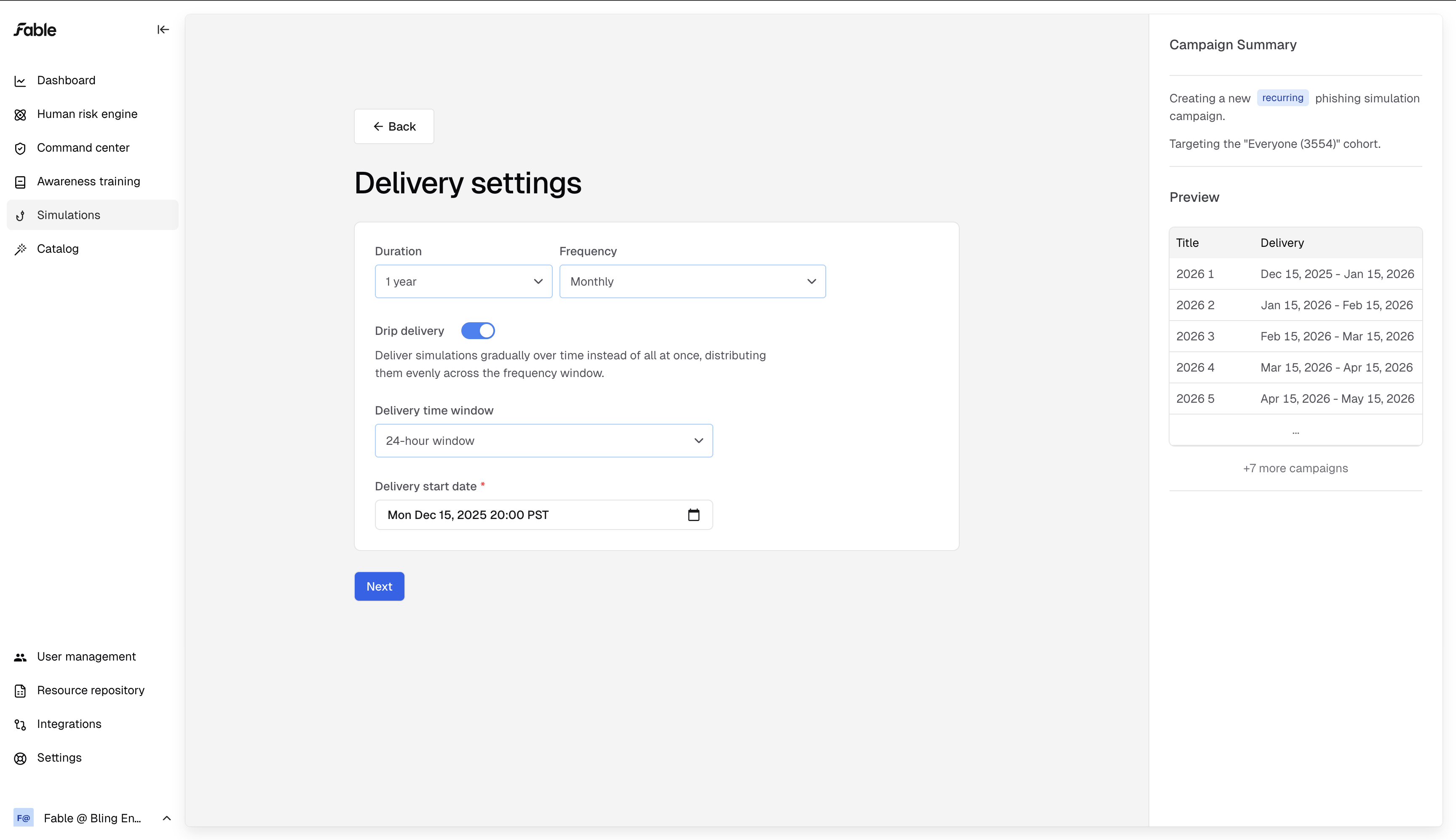
Duration: time period over which we'll schedule recurring campaigns for your employees.
Frequency: how often do you want to simulate a phishing attack for each employee?
Drip delivery: optionally, we will spread phishing sim delivery over the course of each campaign. If you turn off drip delivery, every employee in the campaign will receive their simulation at the same time, on the same day.
Targeting by cohort
On the campaign creation page, click the plus button to target an additional employee cohort, instead of sending the same templates to every employee.
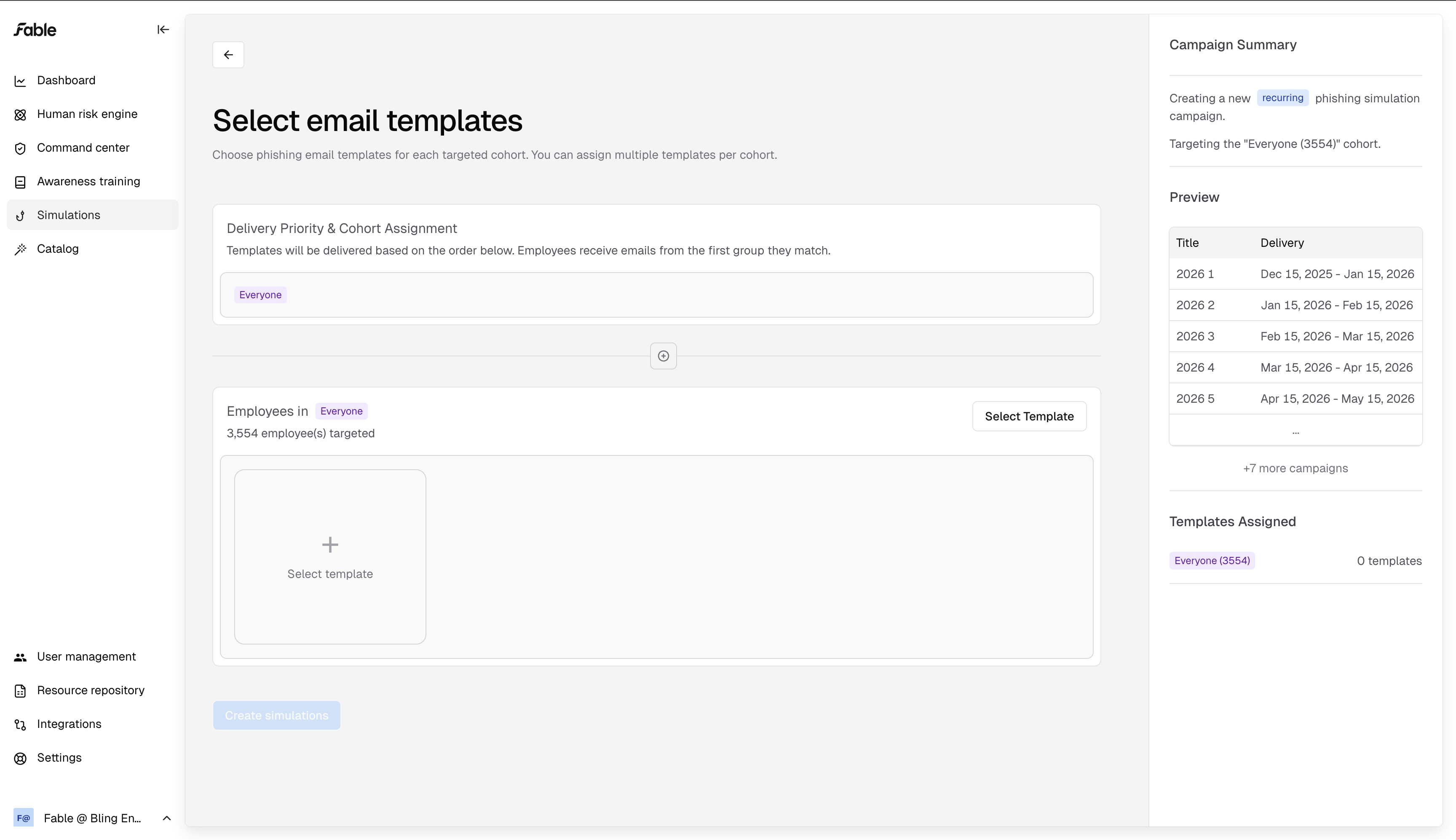
Create cohorts based on the employee risk data Fable generates. Once you have integrations set up, we will create cohorts based on data points like which employees don't have google MFA enforced, or who has been uploading files to AI services. You can also create custom cohorts on our "Human risk engine" page.
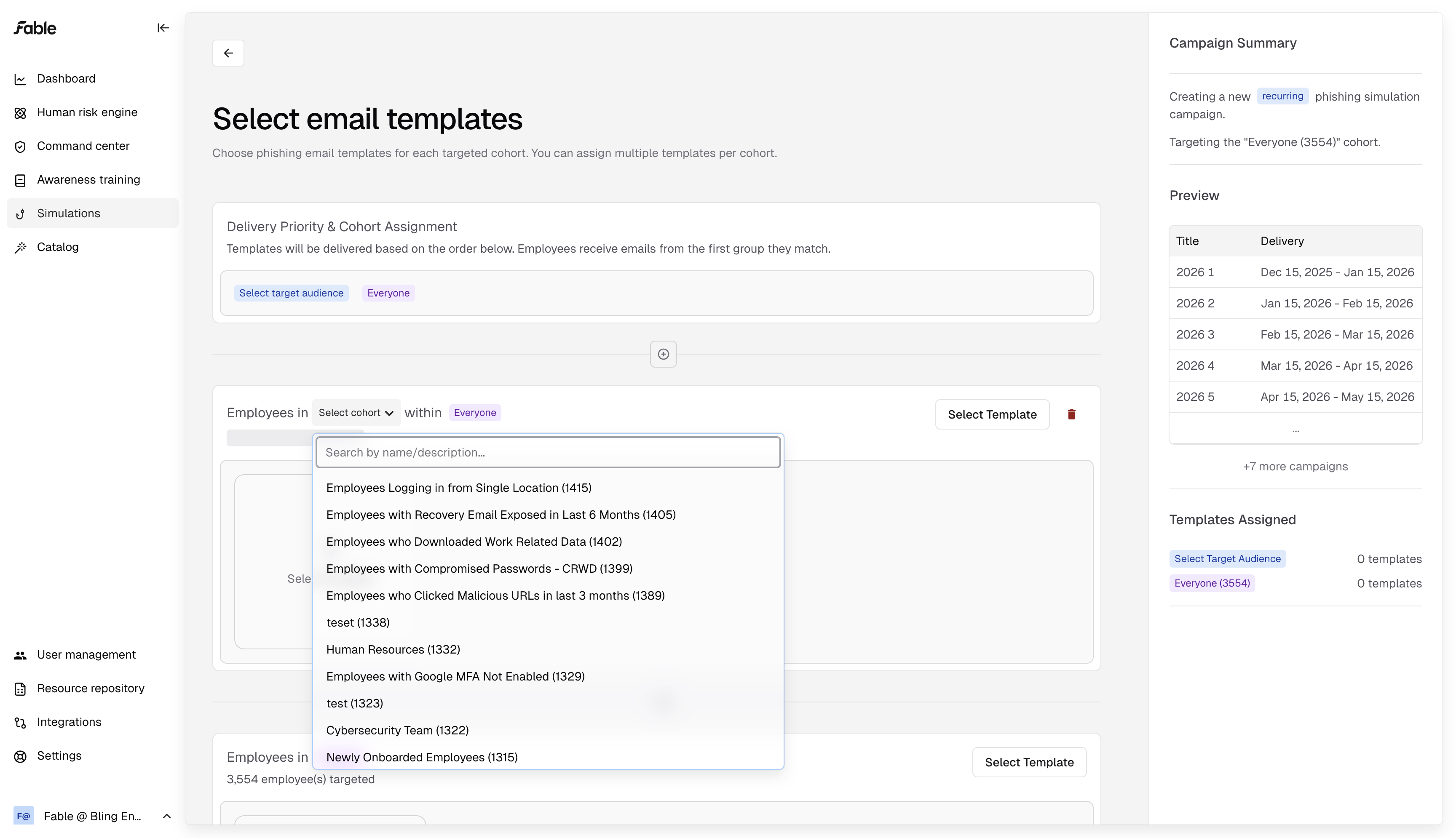
You can create as many cohorts as you want within a campaign. The cohorts are ranked, and each employee will only receive simulations for the top cohort on this page that includes them.
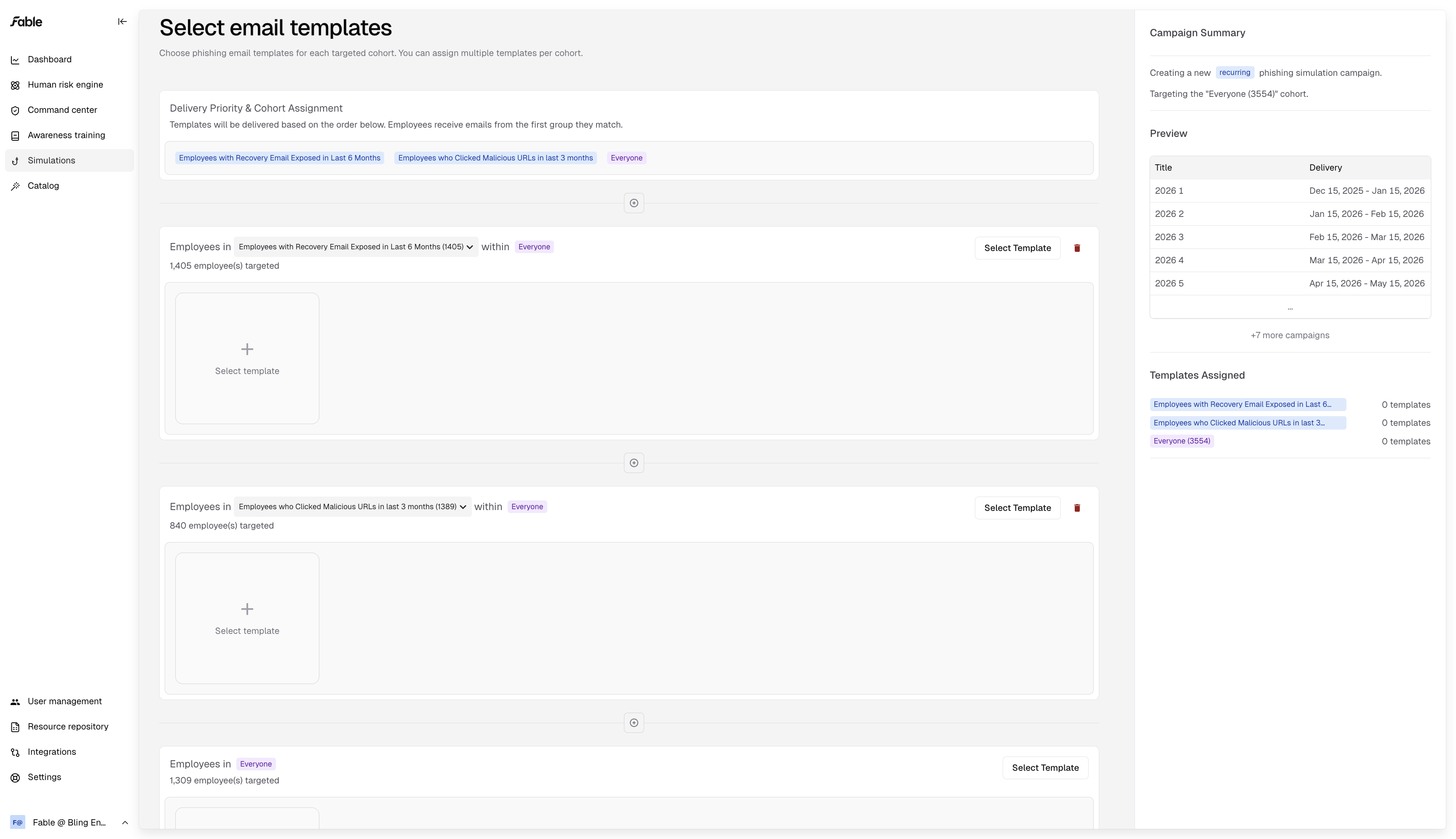
Choosing phishing scenarios
Select a few templates you'd like to utilize for each cohort in the campaign. You can find phishing scenarios that align with each employee group's unique risks.
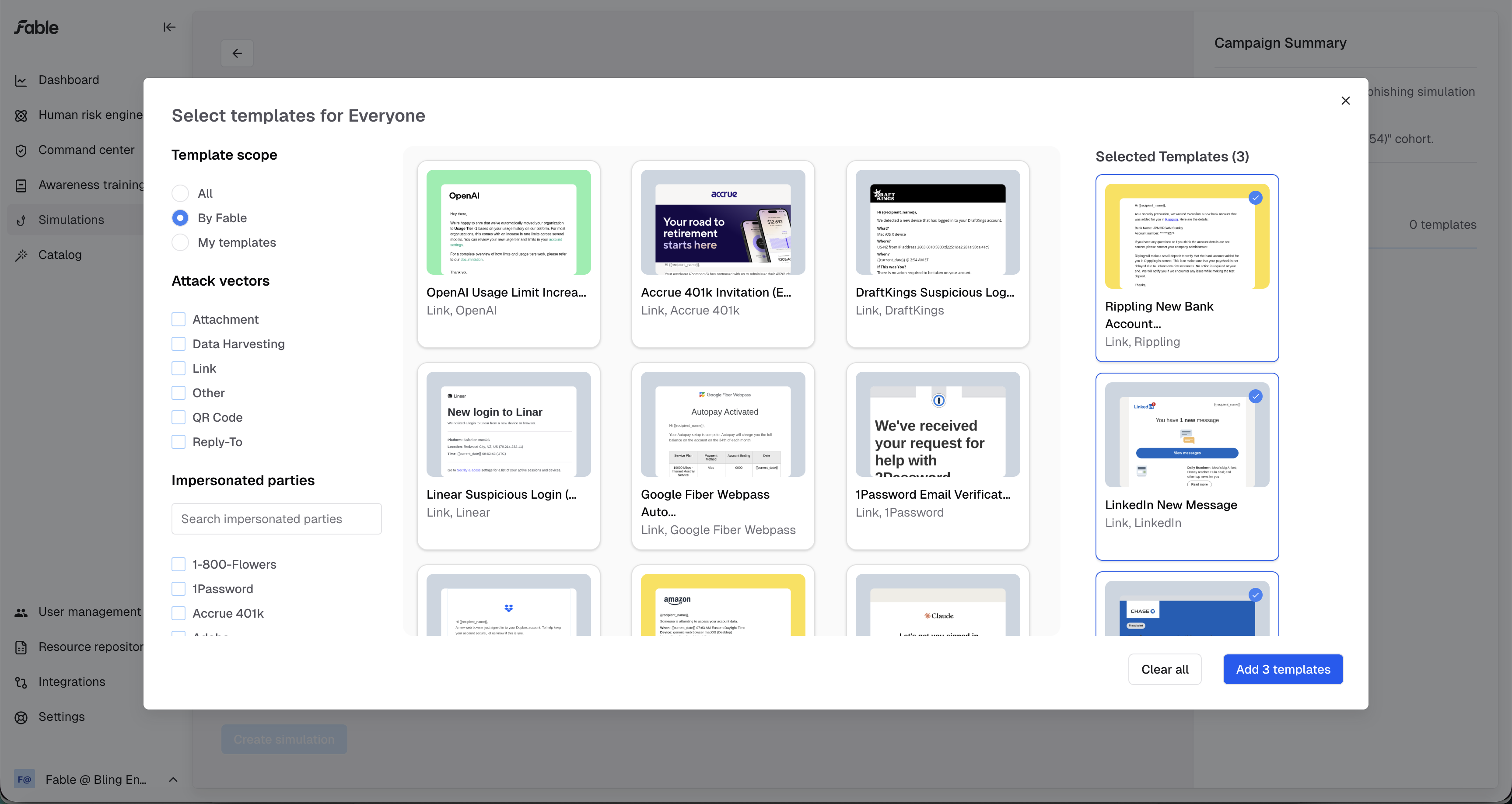
After choosing your scenarios, make sure to click "Add x templates"
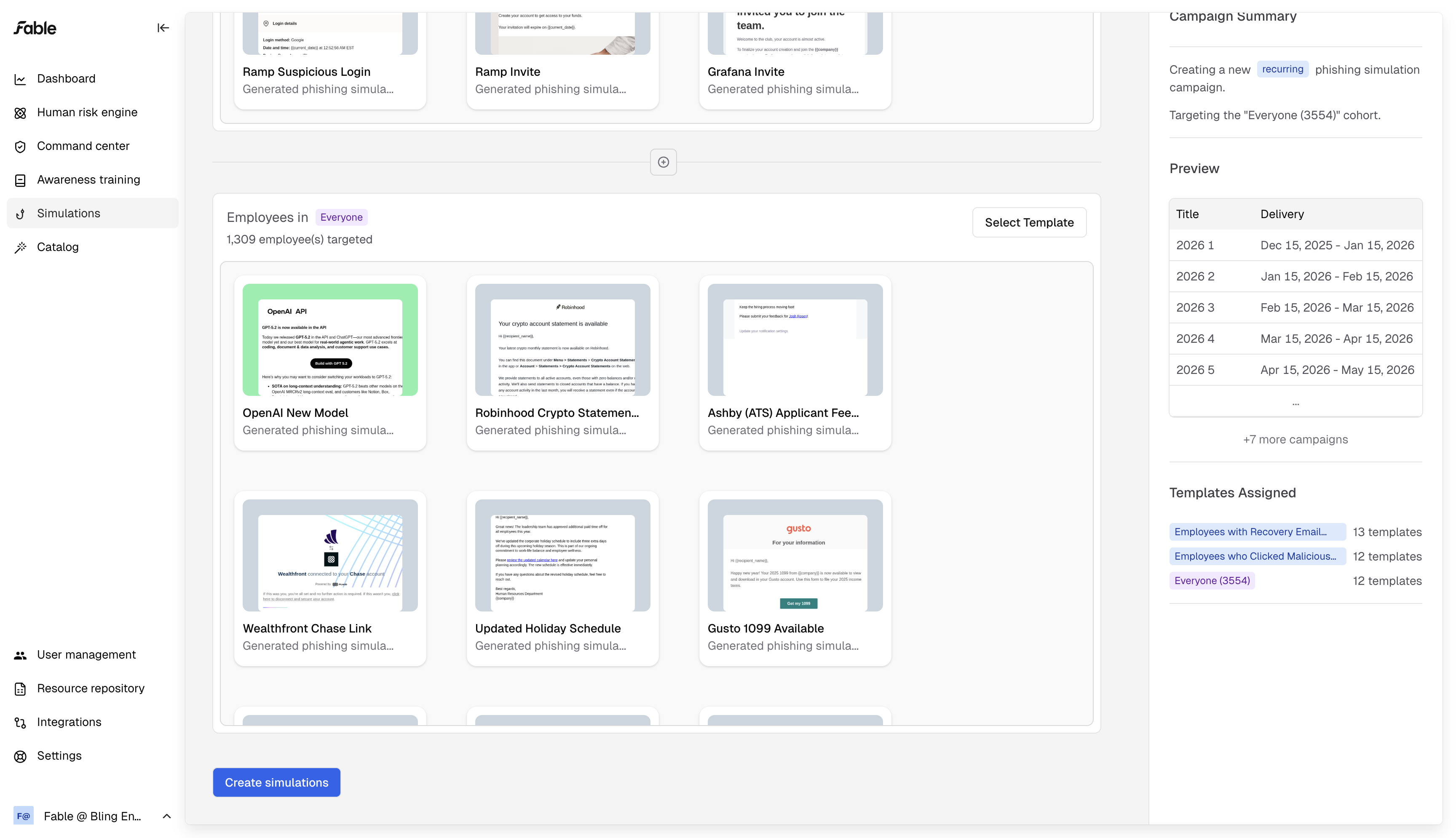
After adding templates, click "Create simulations"
Note: you can only create your recurring campaign if you have enough templates in each cohort to send a fresh template for each sub-campaign. If you create a monthly simulation that lasts for 1 year, you need at least 12 templates assigned to every cohort.
We do this so we can serve a fresh phishing simulation to every employee, every time we simulate an attack for that employee.