Getting started with phishing simulations
Last updated: November 25, 2025
Create a simulation
To create your first campaign,
Navigate to the Simulations module with the left-hand side menu
Click "Create new Simulation"
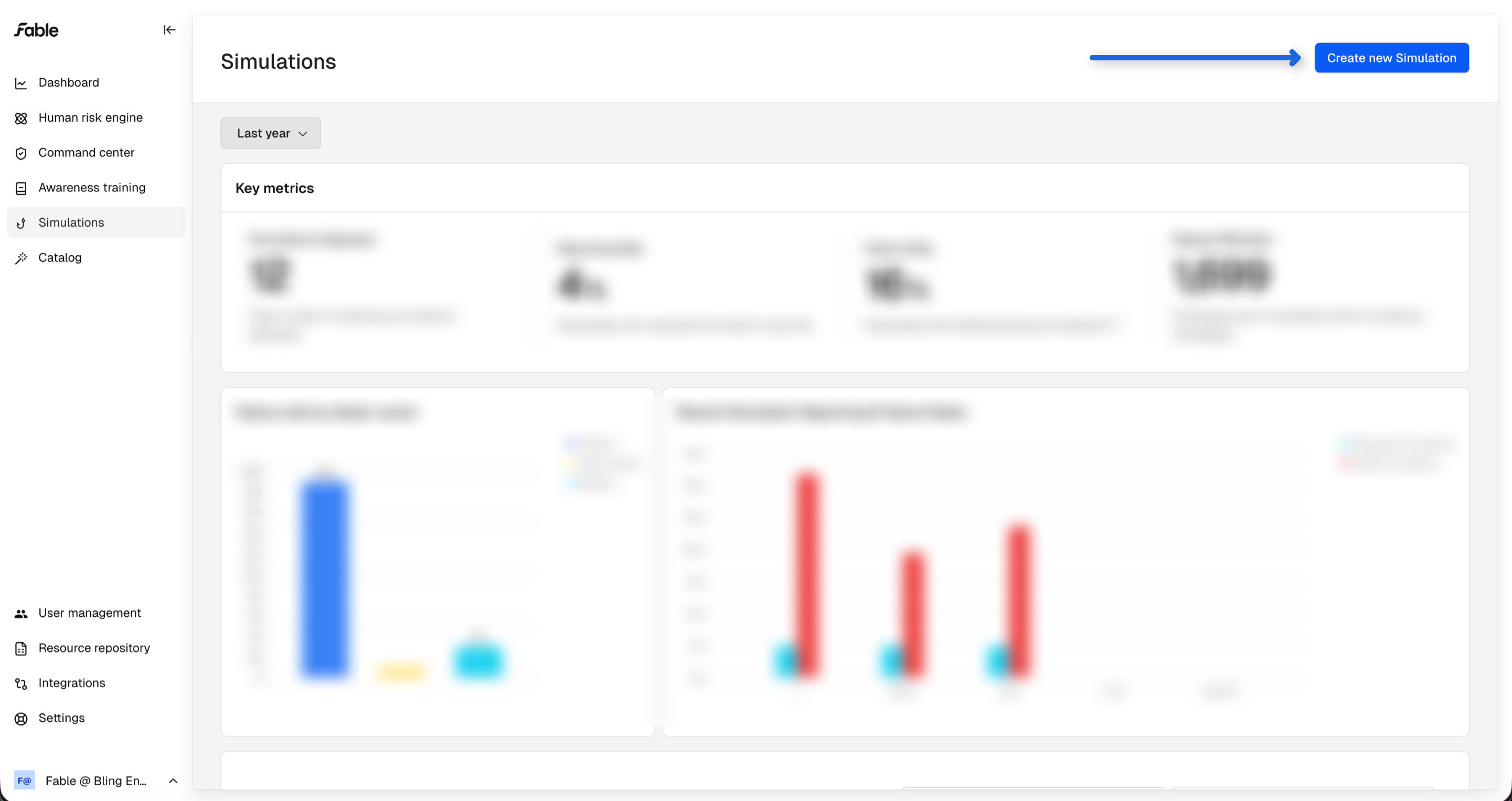
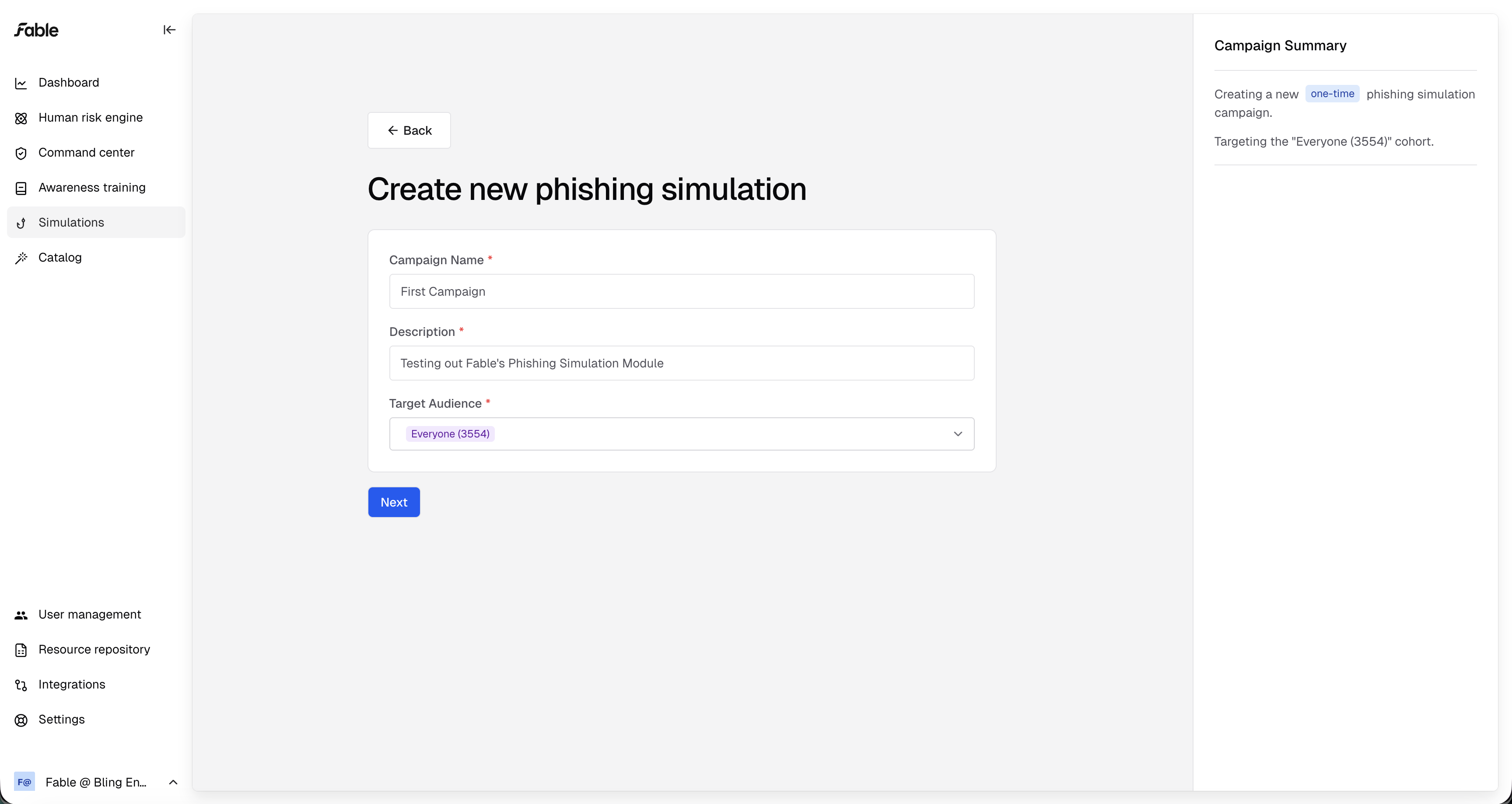
Then, enter a name, description, and audience for your campaign.
We recommend selecting the "Test Group" audience for your first campaign.
Select a few templates you'd like to utilize for the simulation.
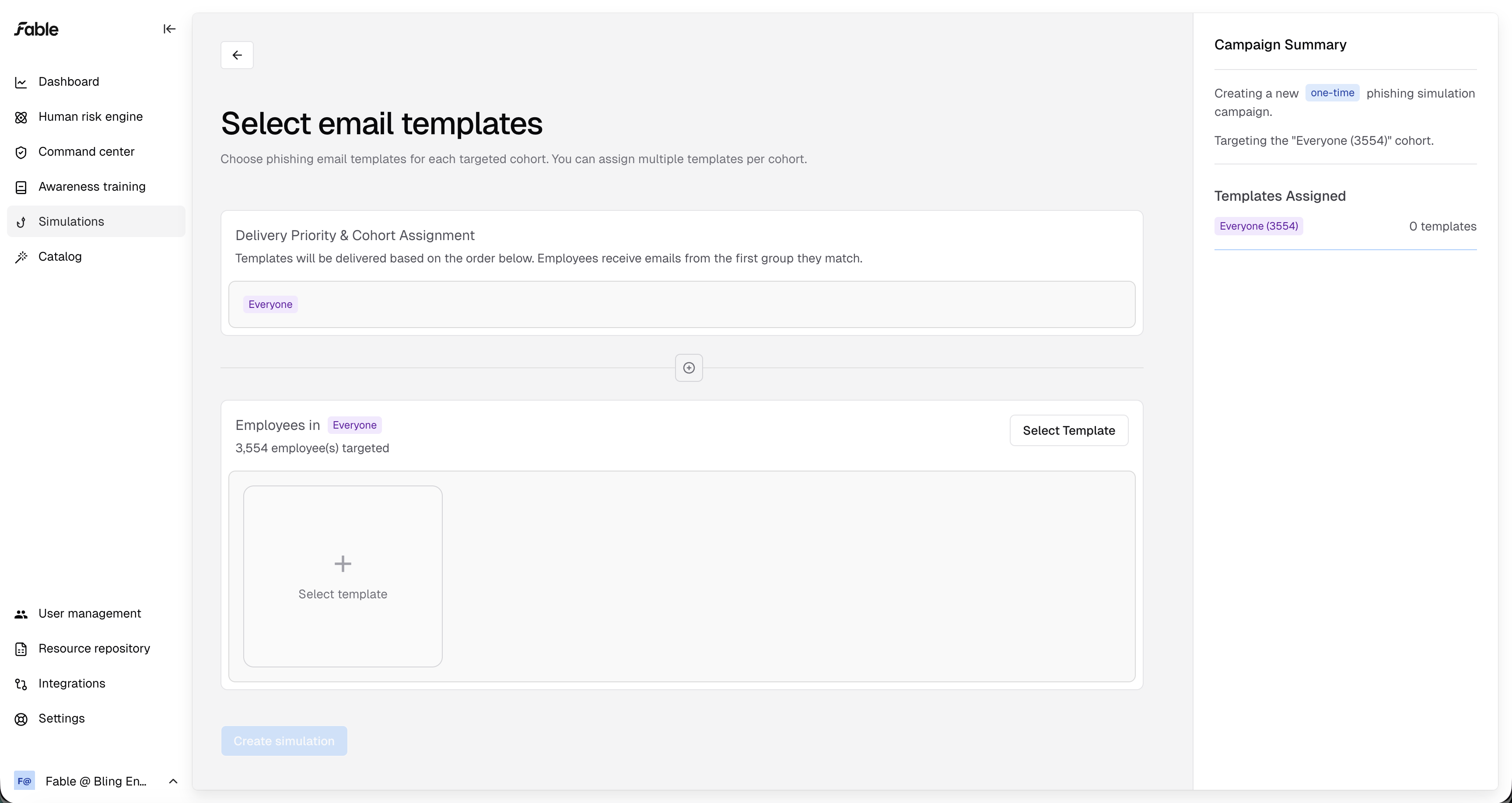

After adding templates, click "Create Simulation"
Deliver a simulation
Prior to delivering a simulation, deliver a preview to your inbox to validate whitelisting and content formatting.
Click Deliver preview at the top right
Select the template you wish to preview, as well as your email to deliver to
Click Deliver preview
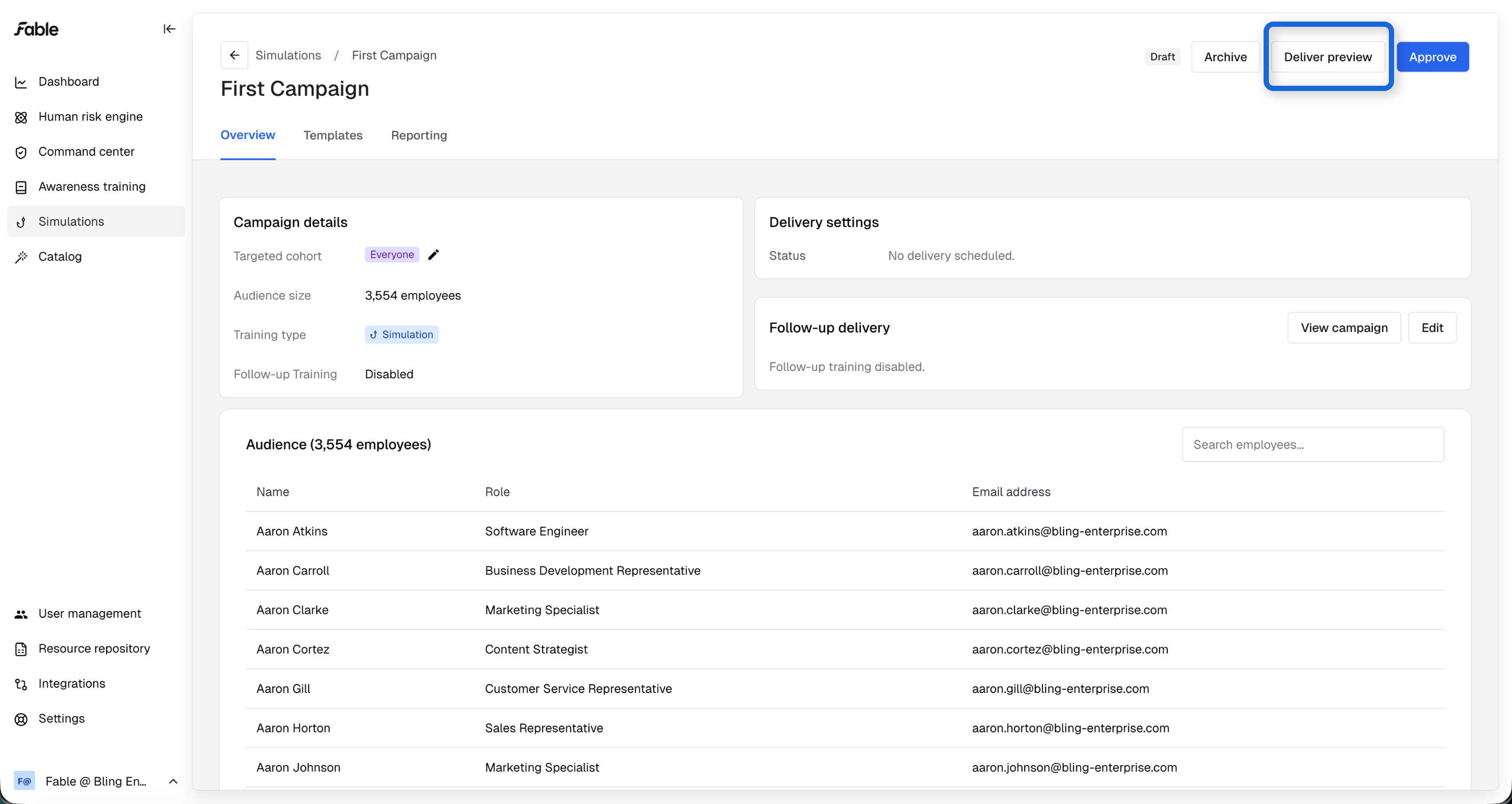
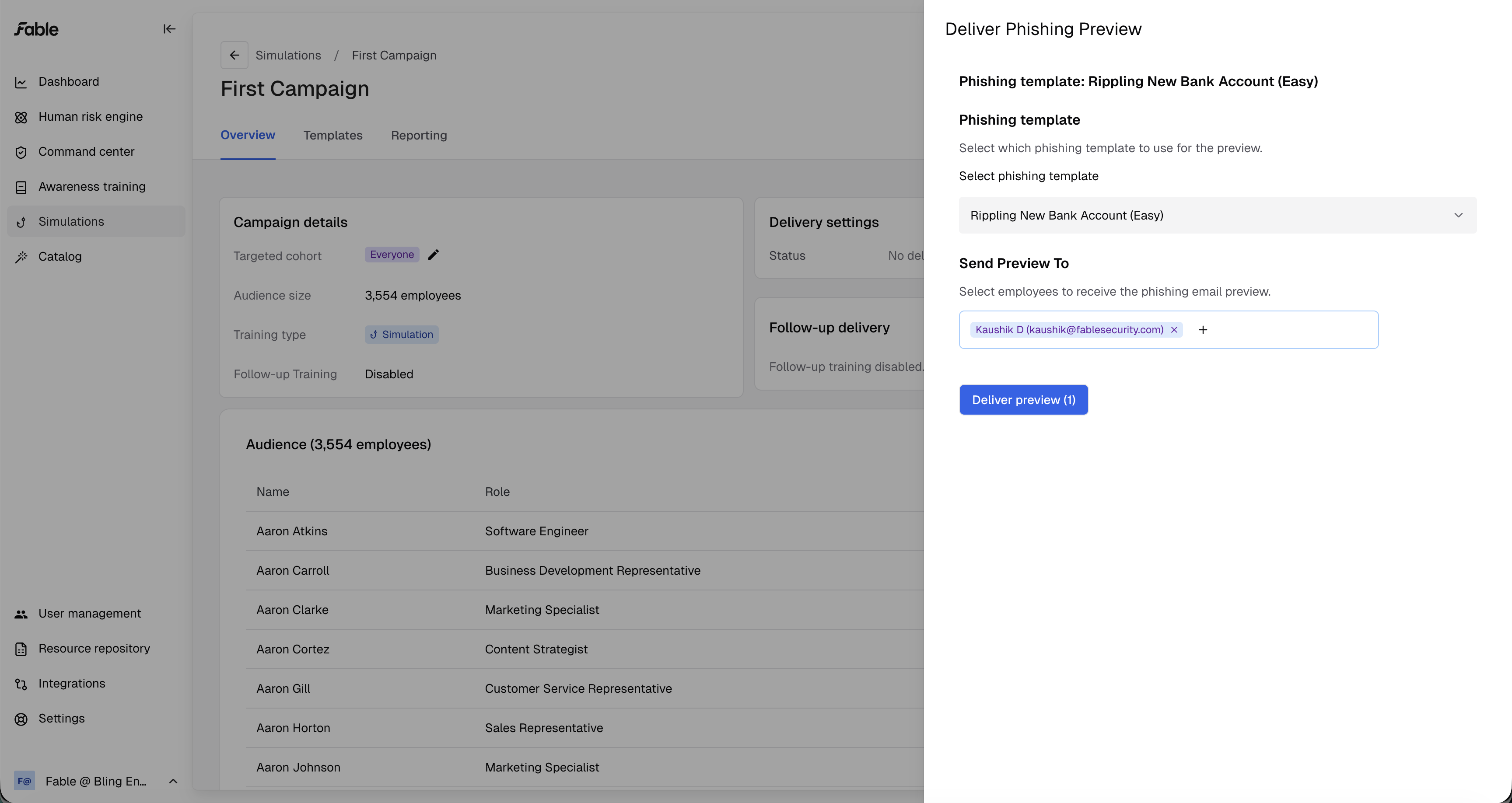
Allow a few minutes for the preview to deliver. After validating the preview shows in your inbox as expected, you are ready to deliver your first campaign.
Approve the simulation at the top right
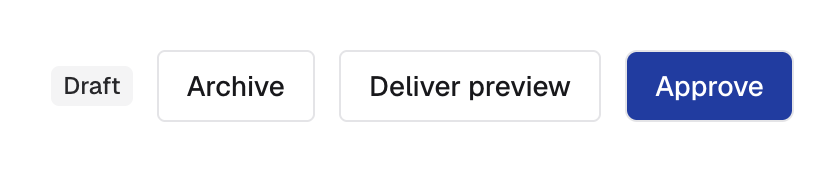
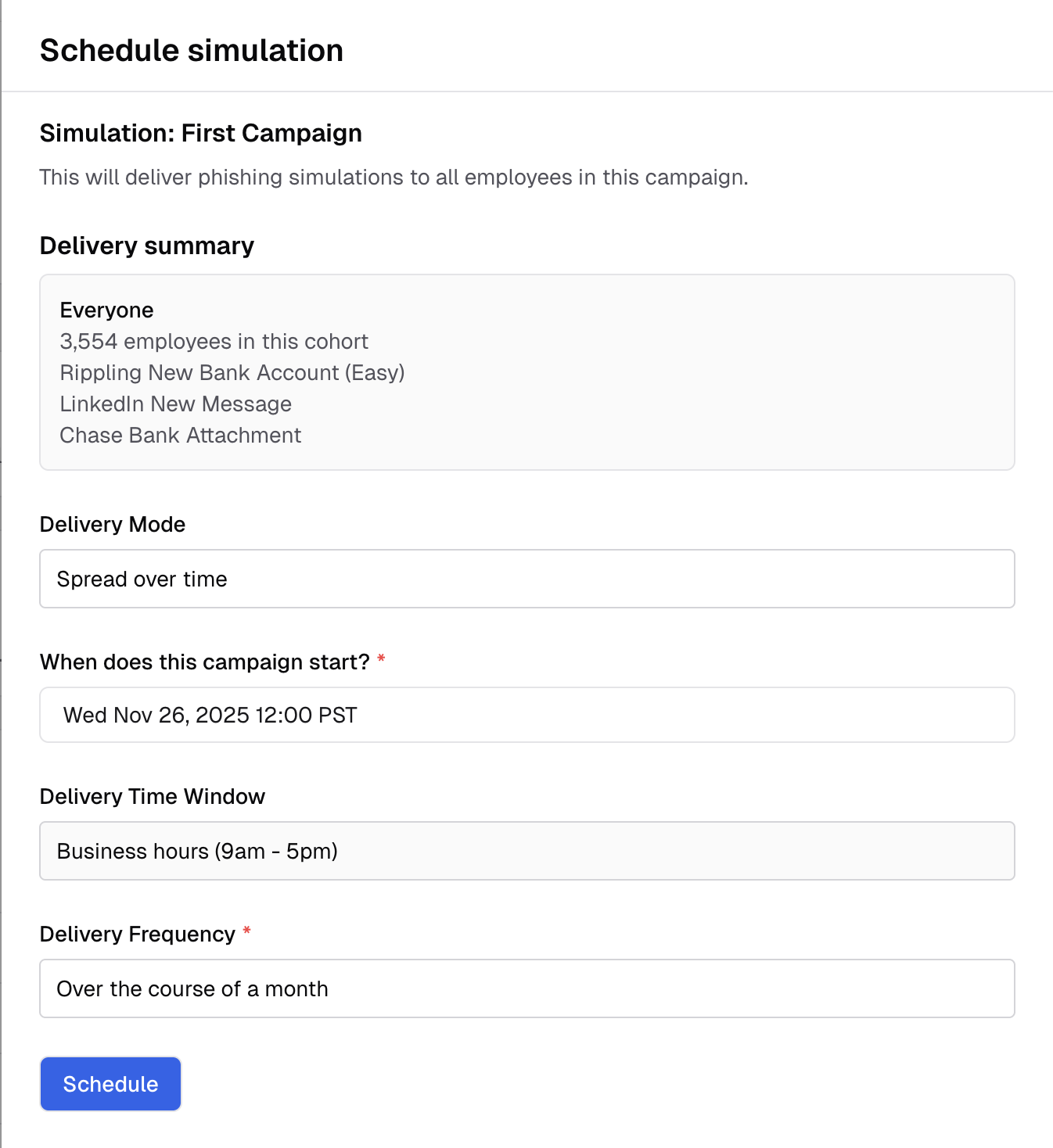
Click Schedule simulation

Delivery options:
All at once
Delivers all simulation emails at the chosen time
Spread over time
Delivers simulation emails in batches beginning at the start date, with a configurable length
Deliveries can be constrained to company business hours
Click Schedule and confirm once delivery options are set
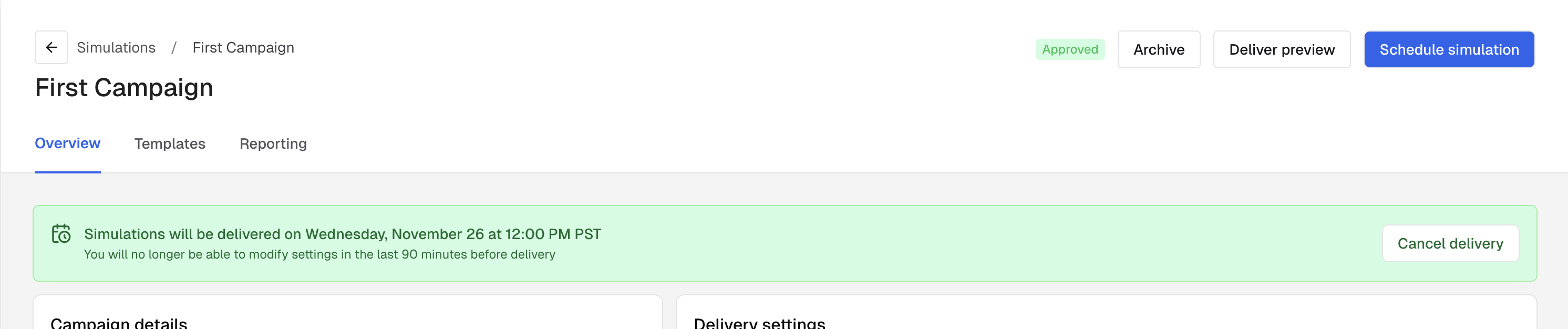
Cancelling scheduled simulation
Navigate to the simulation and click Cancel delivery on the overview page
Enable follow-up training
Optionally, choose to send Fable's AI-personalized phishing training to users who fail a simulation.
Navigate to campaign overview page
Click Edit on Follow-up delivery and toggle on
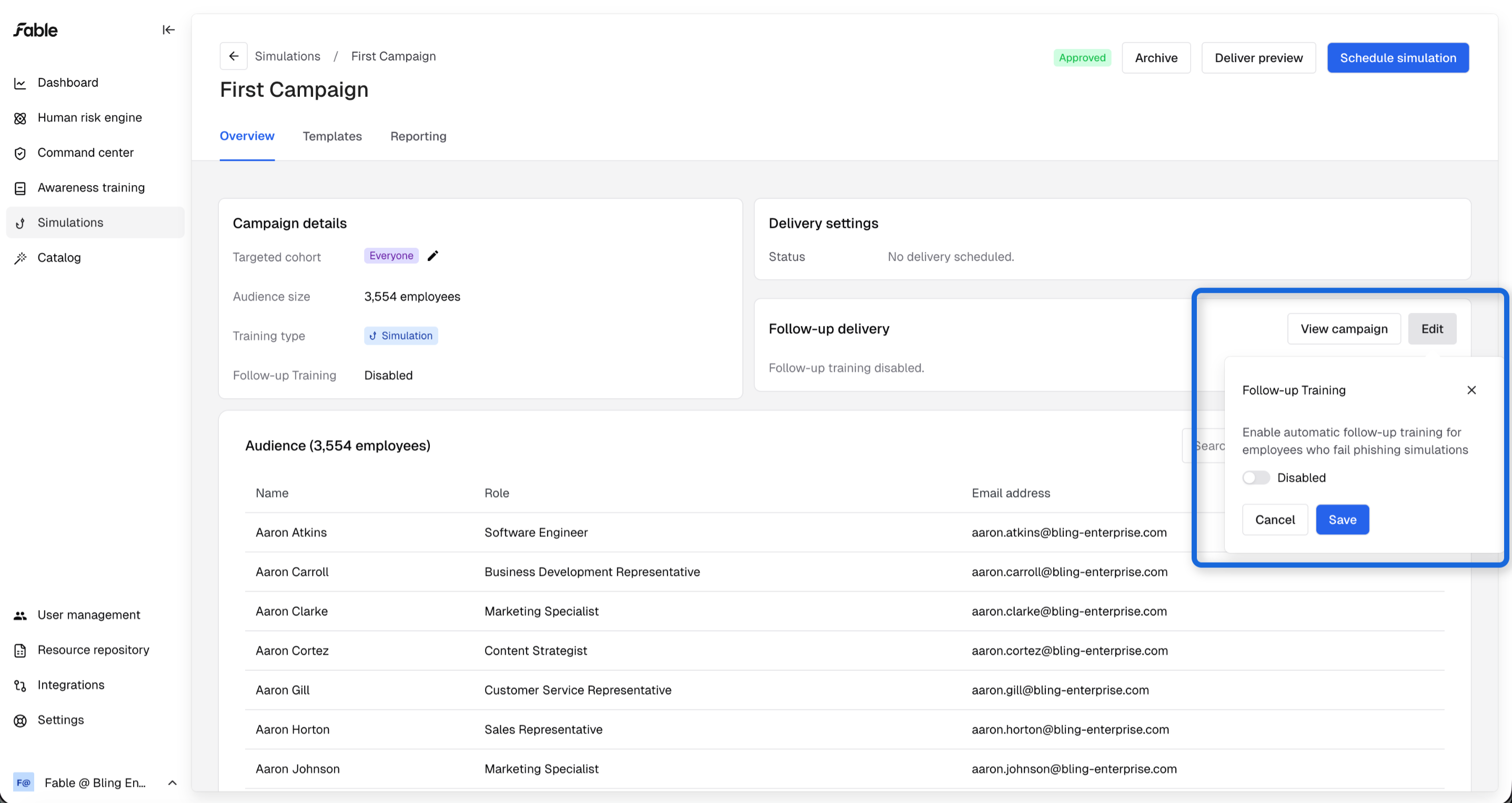
To preview the AI-generated training for employees, click View campaign on Follow-up Delivery
Select a template to view a preview of the follow-up training. If selecting a video displays "Follow-up video is generating", check back in 20 minutes.
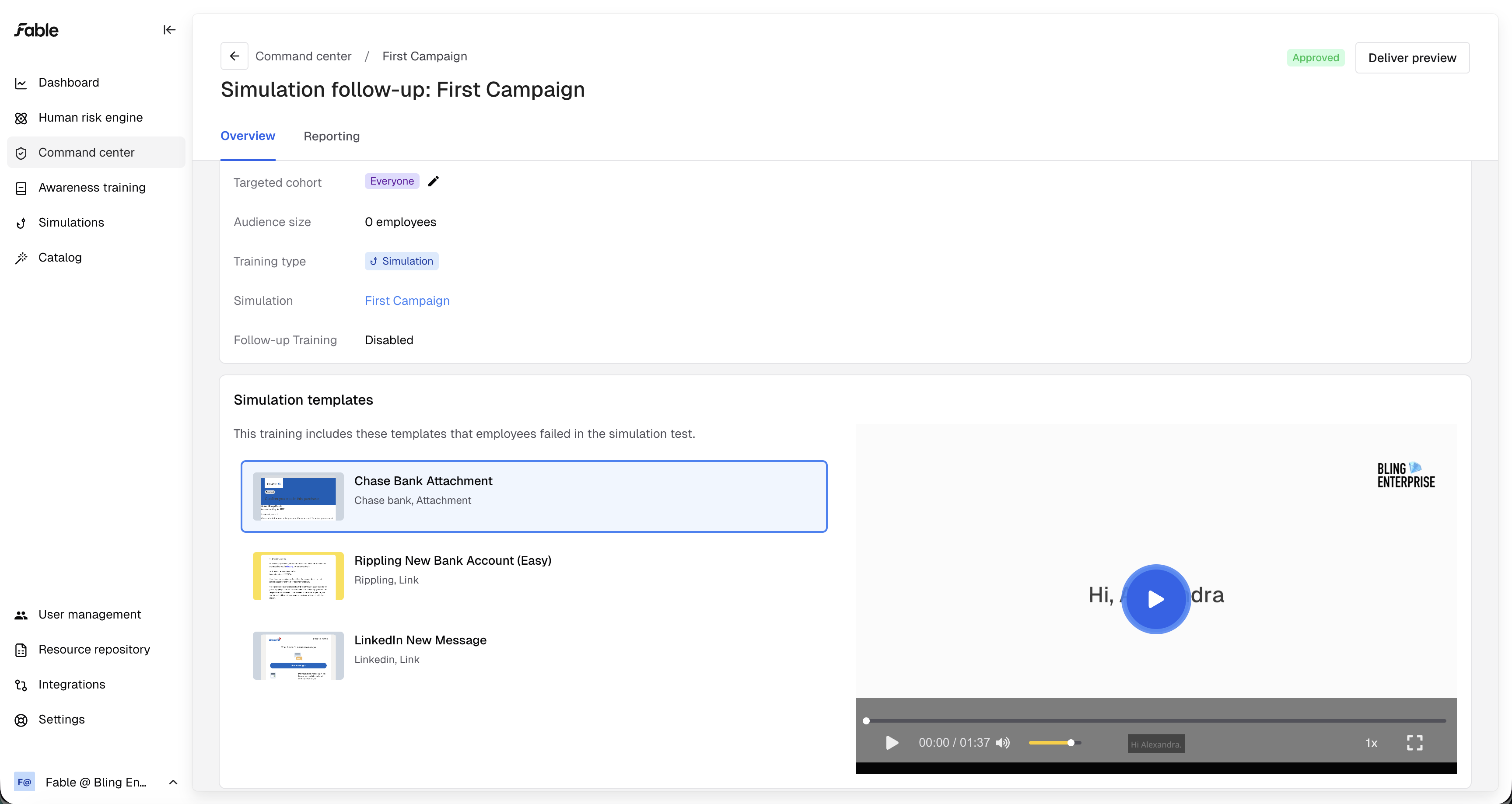
Optionally, click Deliver preview at the top right to send a preview to your inbox. Allow up to 20 minutes for the AI-personalized video to generate and deliver.