Phishing simulation campaign reporting
Last updated: February 23, 2026
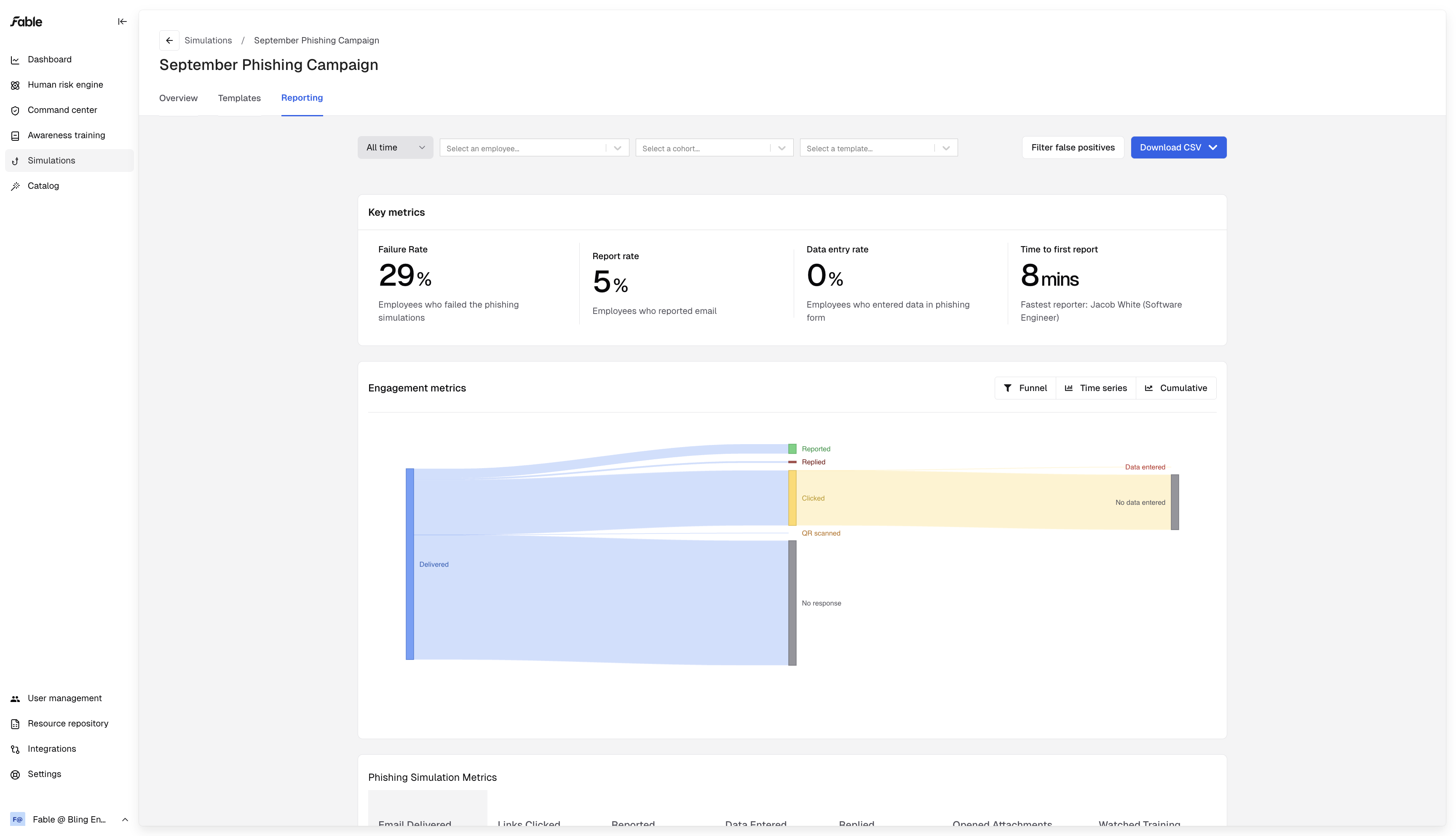
Go to one of your live phishing campaigns and check out the "Reporting" tab to see the results of that campaign.
You can see employees':
failure rate - % of employees who clicked/scanned/replied to/downloaded something malicious in the phishing simulation
Report rate - % of employees who reported phishing when they received the simulation
Data entry rate - for credential harvesting simulations, this is the % of employees who input their credentials to our spoofed login site
Time to first report - track how long it took for the first of your employees to report phishing when they got the simulation. This is important because your email security tool can identify a phishing email and pull it out of everyone's inboxes, once someone reports that phishing email
Filtering
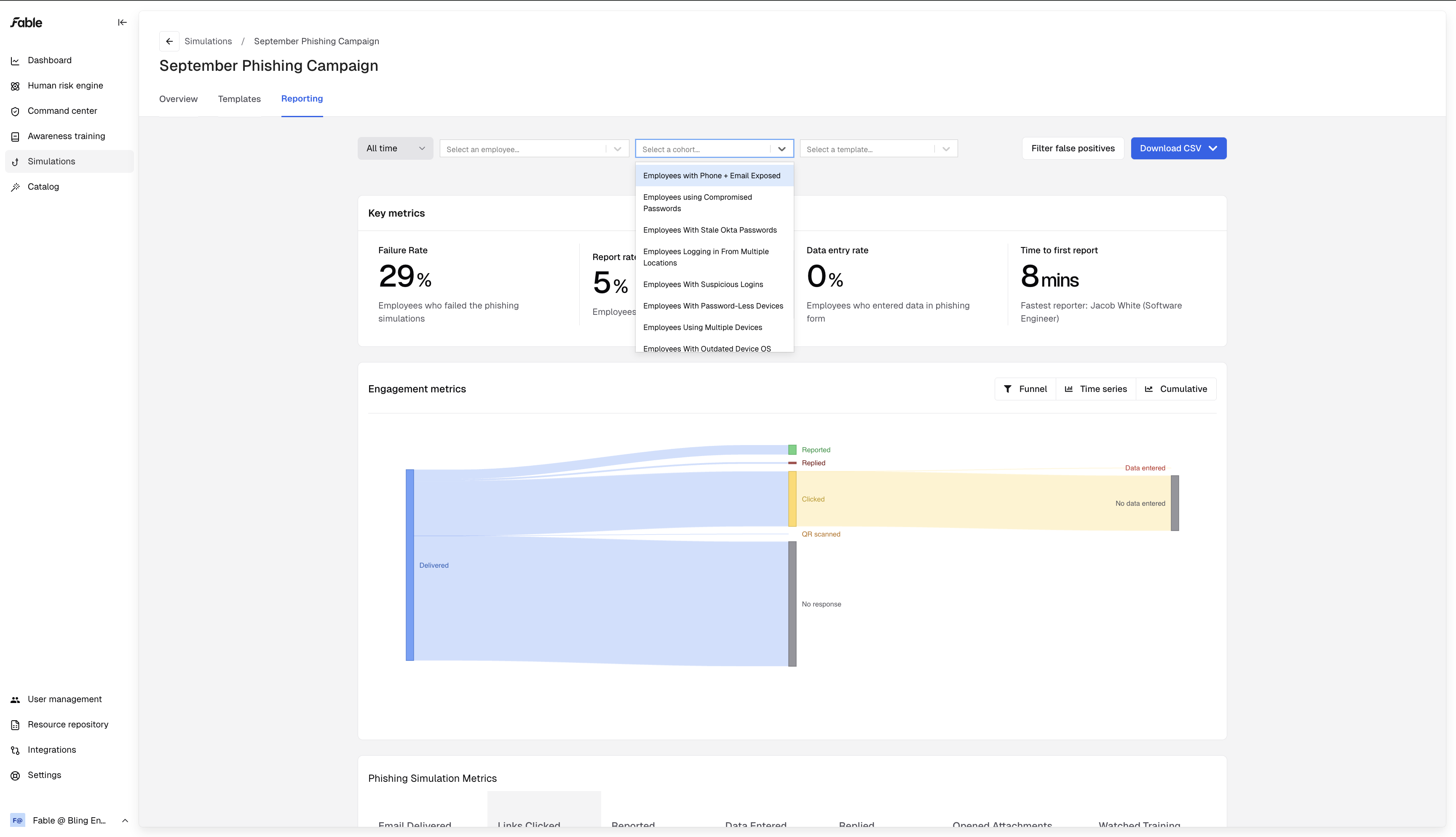
Filter reporting data by our human risk cohorts, by which template employees received, or look at an individual employee's results.
Simulation data
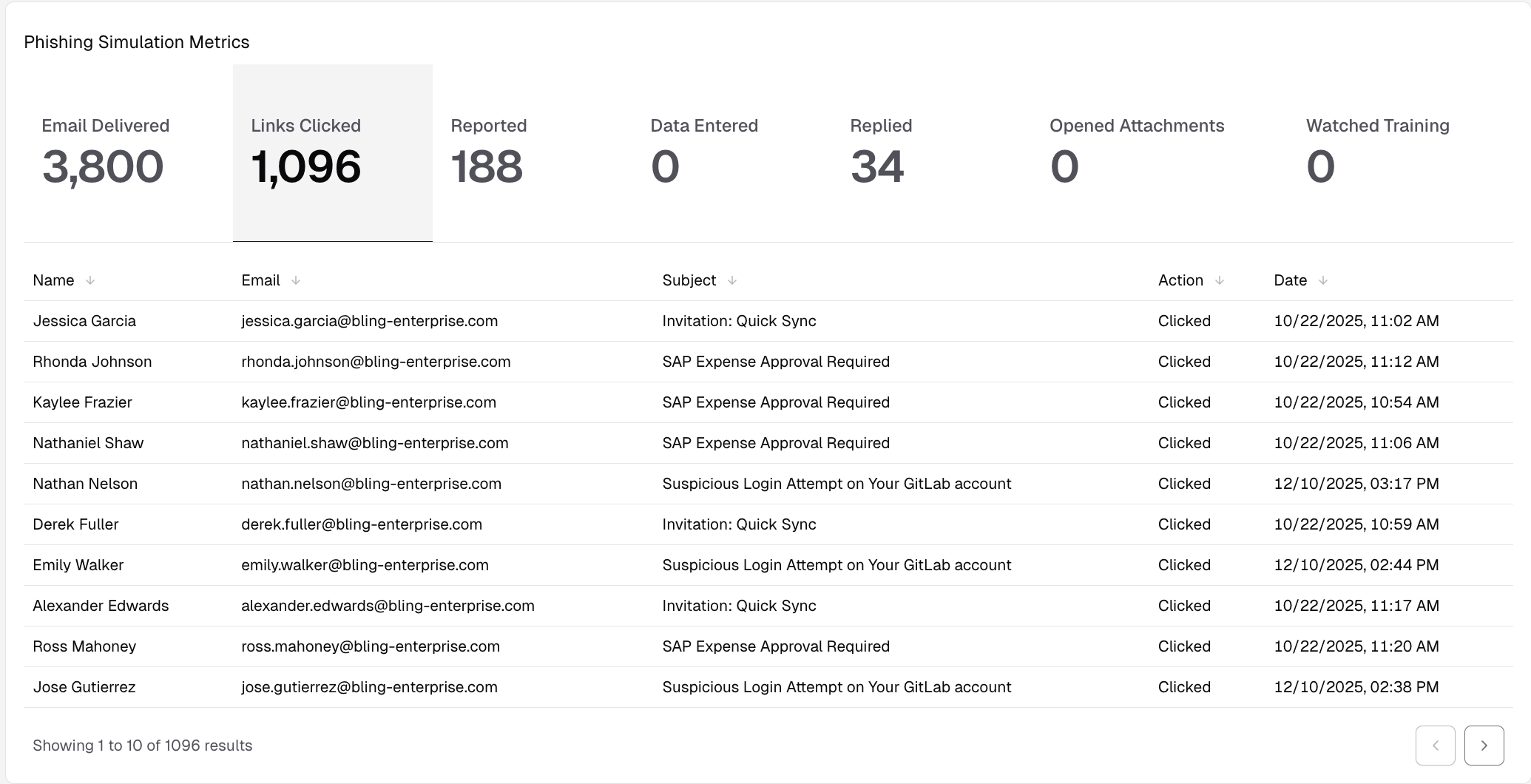
At the bottom of the Reporting screen, you can see which and how many employees failed the simulation, who reported phishing, how employees failed and who watched the follow-up training after their failure.
Exporting
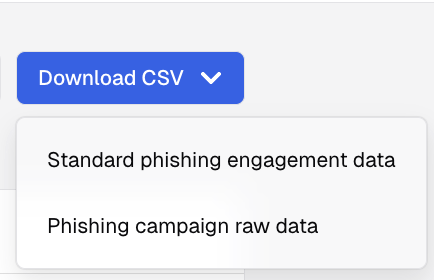
If you need to pull a CSV into your own data visualization tools, you can choose between our clean phishing engagement data or the raw events data.