Okta SSO integration
Last updated: February 23, 2026
Introduction
Fable Security is an AI-powered Human Risk Platform that enhances employee behaviors to reduce security incidents. We integrate with your Okta SSO to enable employees to securely access Fable apps. This integration will take 3 minutes.
Integration requirements:
Okta SSO
Integration steps
Step 1: Create an app integration
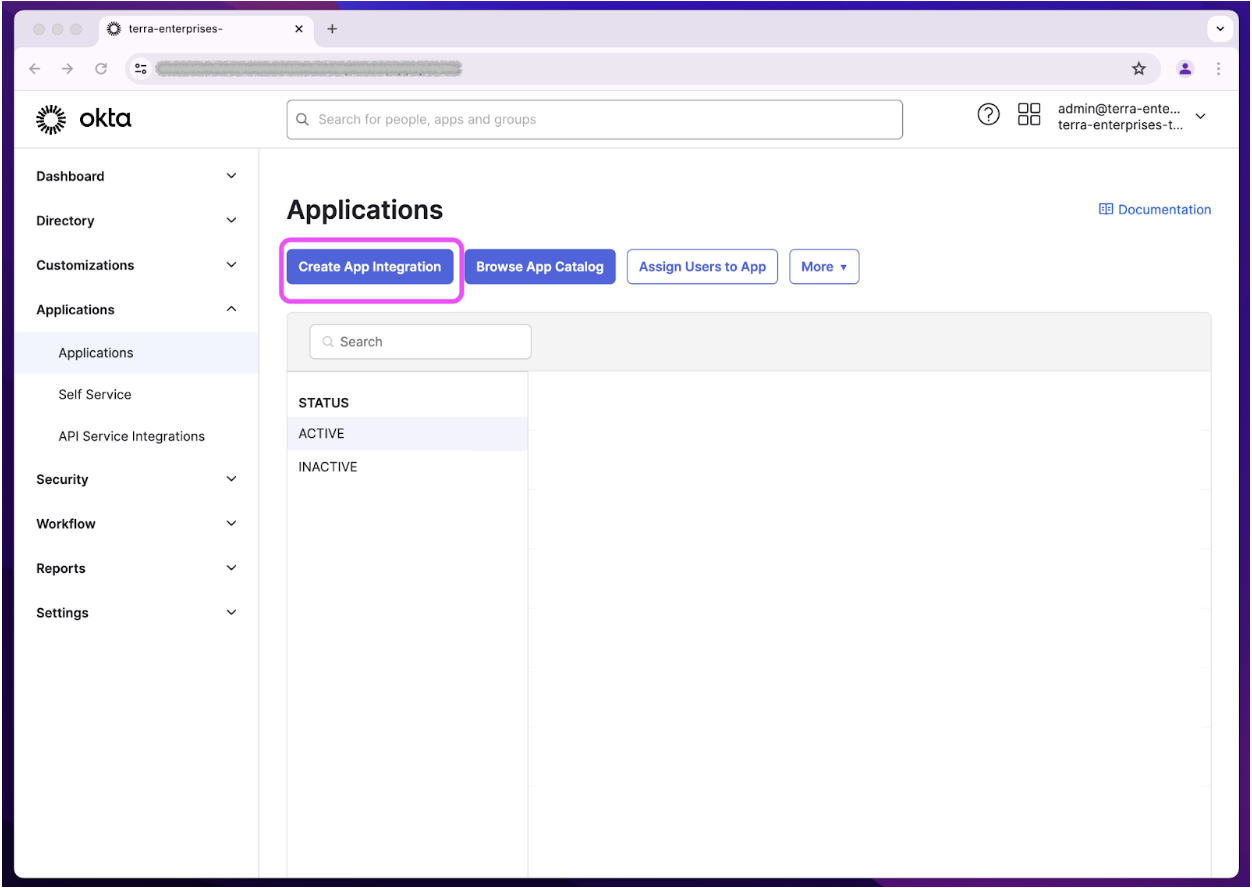
Log into your Okta admin account. Go to “Applications” -> “Applications” -> Create App Integration.
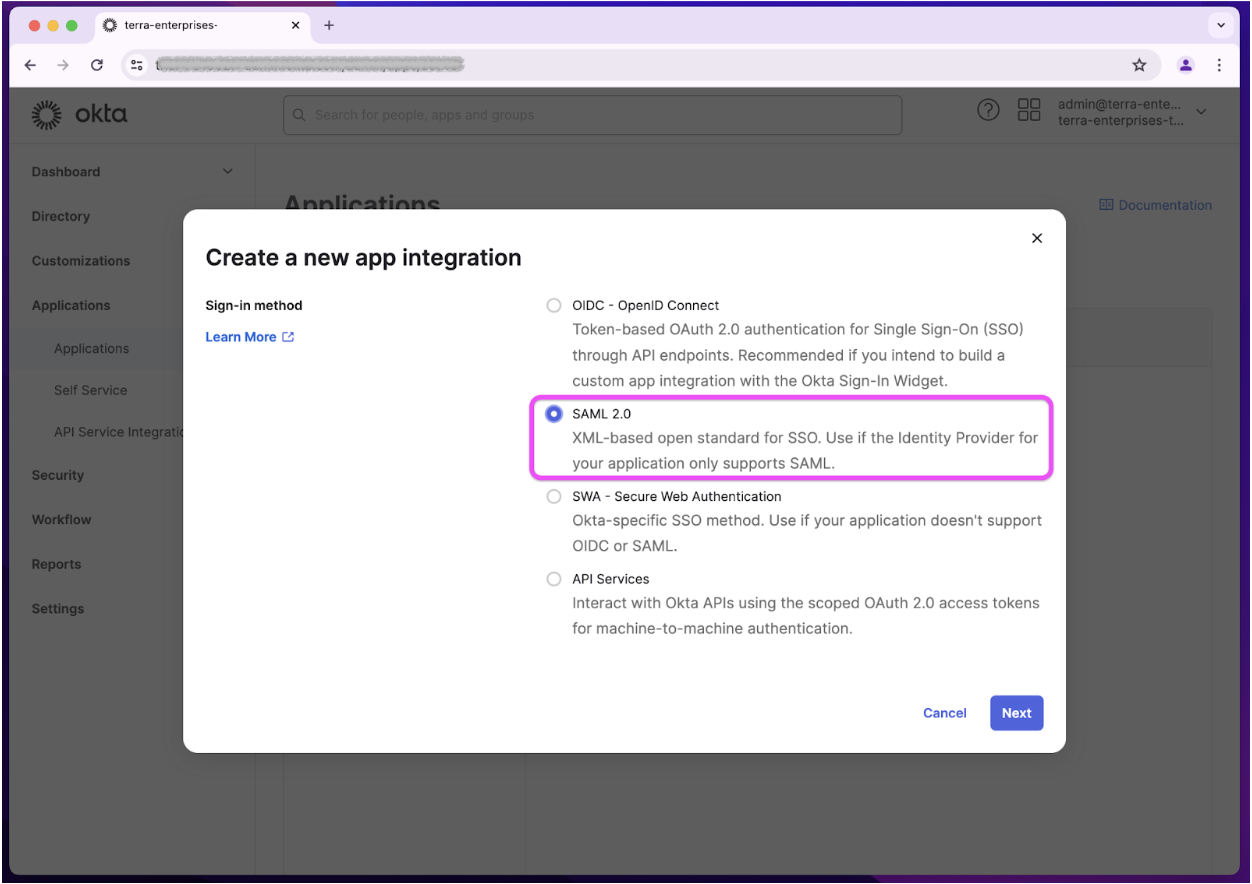
Then, select “SAML 2.0”
Step 2: Input Fable Security app information
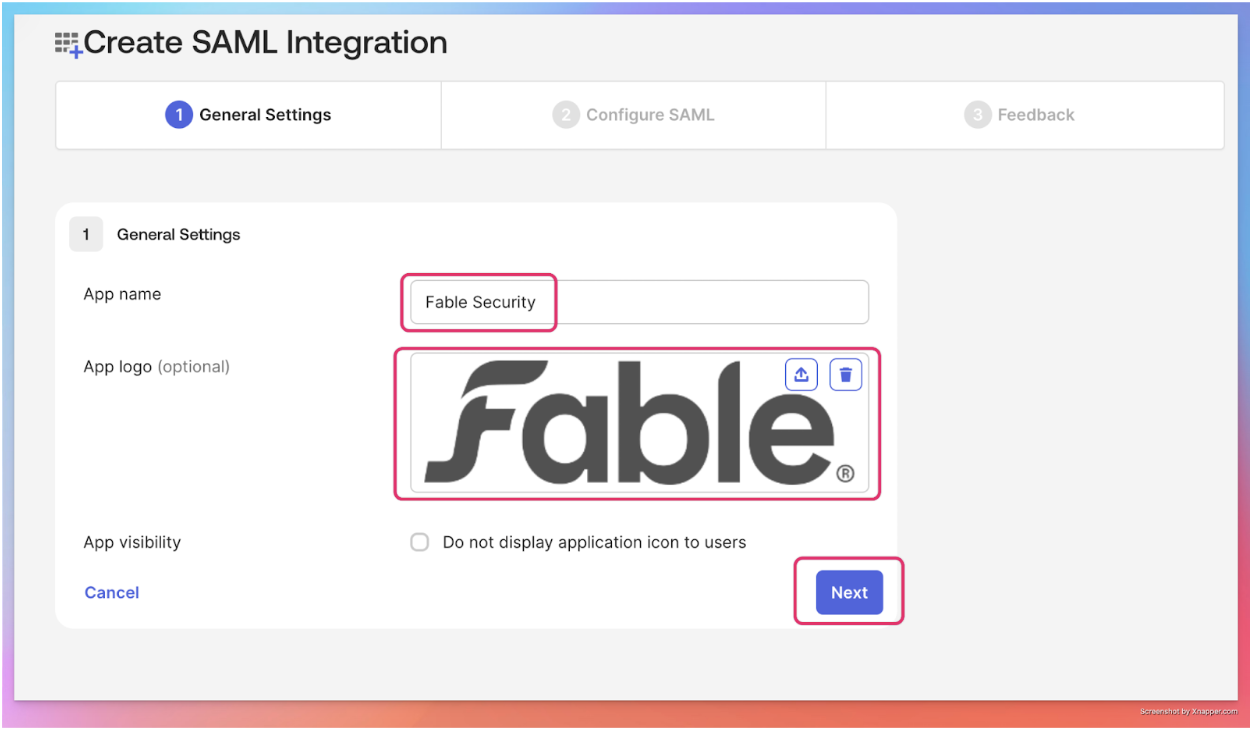
To help your organization identify the Fable application:
Update “App Name” with Fable Security
Update app icons with
Rectangular icon: https://assets.fablesecurity.com/icons/fable-wordmark.png
Hit “Next” and continue.
Step 3: Obtain URIs from Fable’s integration page
Go to Integrations page: https://app.fablesecurity.com/settings/integrations/
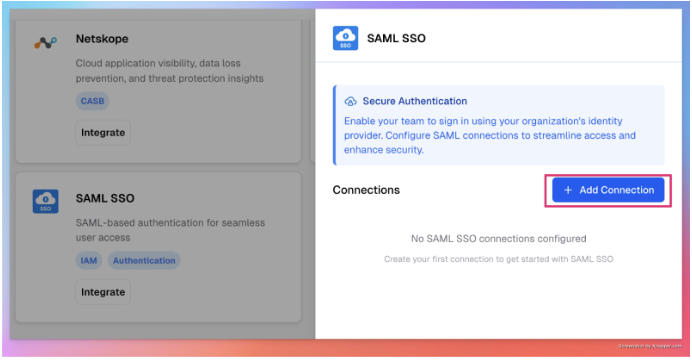
Select “SAML SSO” card
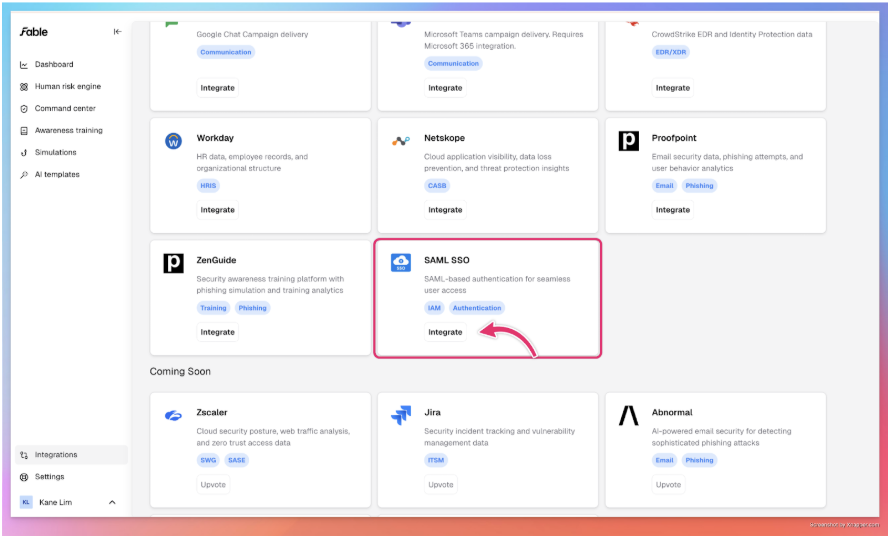
Click on “Add Connection” in the drawer
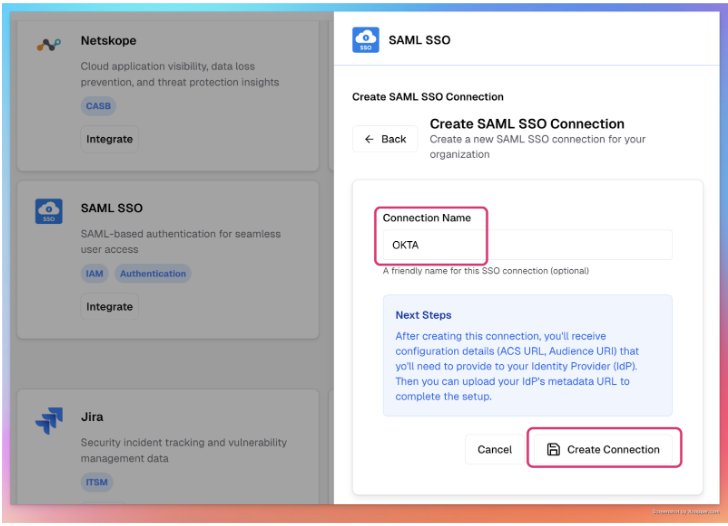
Add “OKTA” as the connection name
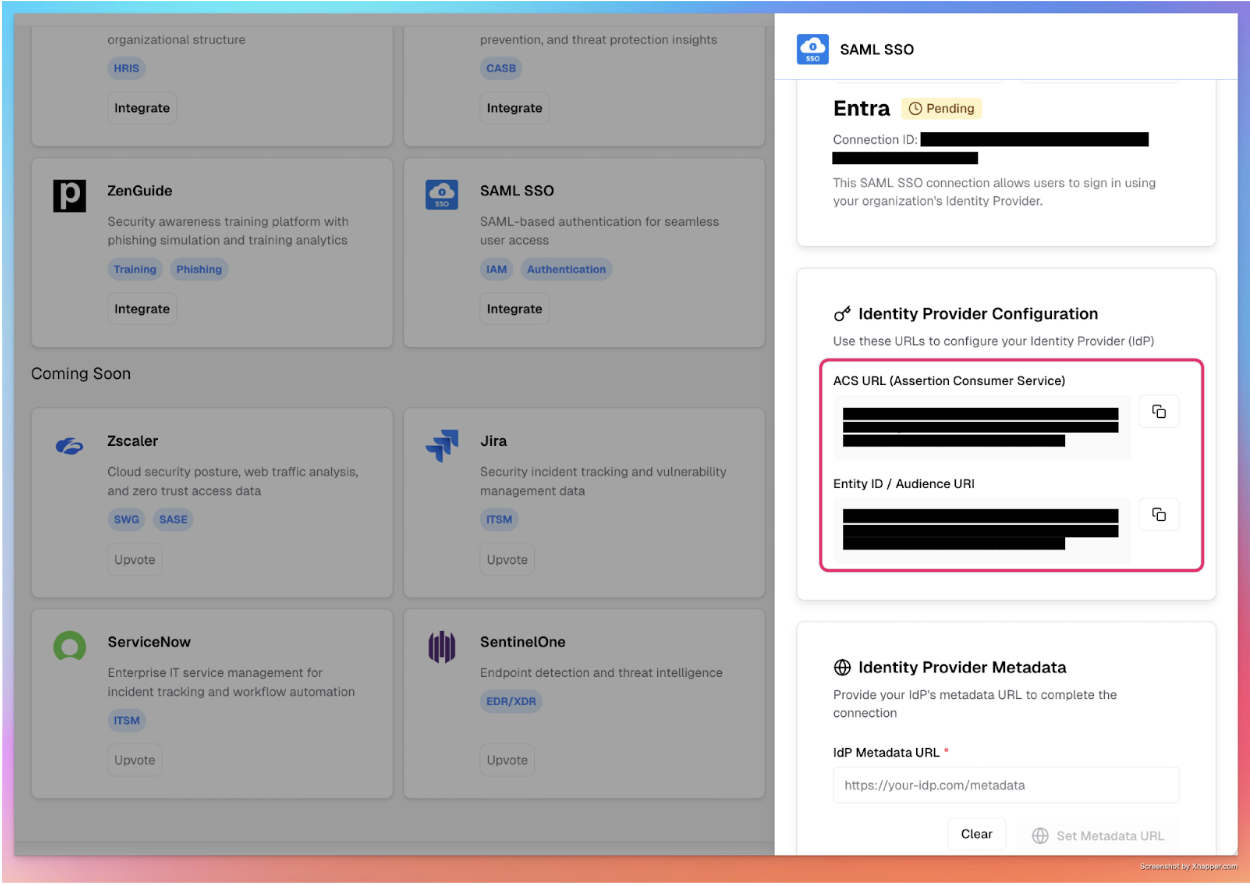
Copy the URLs for your next steps in OKTA
Step 4: Configure SAML connection
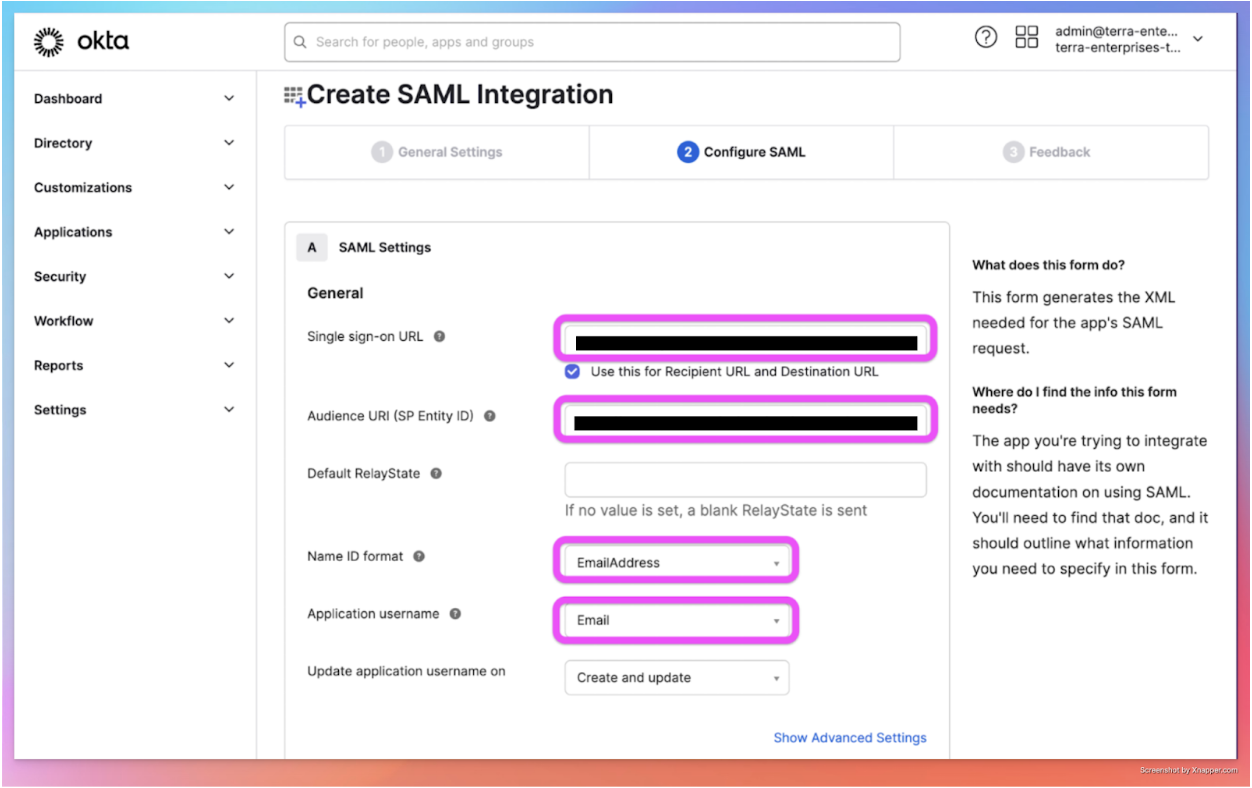
Click on “Configuration” and fill in the following fields provided by Fable. This is unique for your organization’s SAML connection to the Fable App.
Fill in “Single sign-on URL”and “Audience URI (SP Entity ID)” from the URLs in the previous step.
Step 5: Configure the parameters
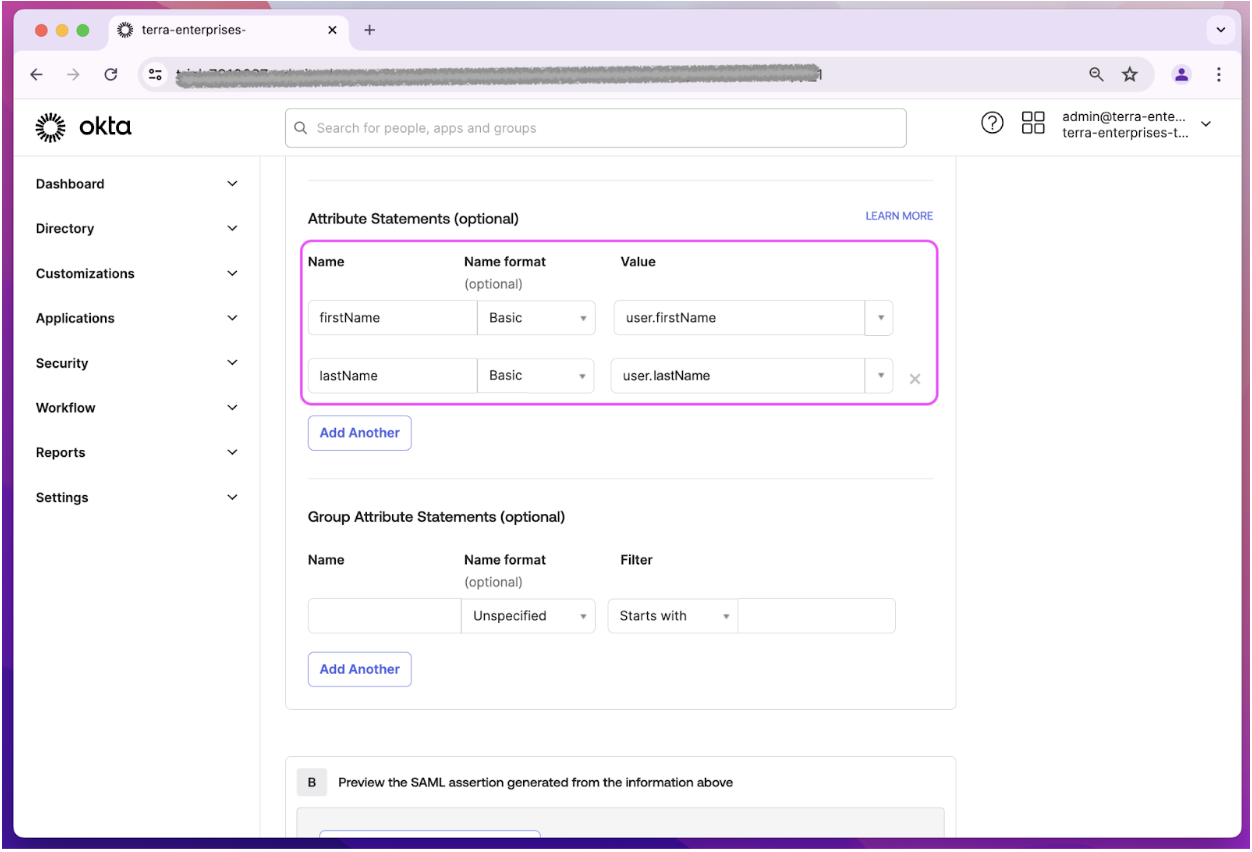
Scroll down to “Attribute statements” and add these fields to help Fable identify your employees.
Add attributes:
In “Name”, fill in: First Name
In “Value”, select “user.firstName”
Repeat the previous steps with Name: “Last Name” and Value: “user.lastName”.
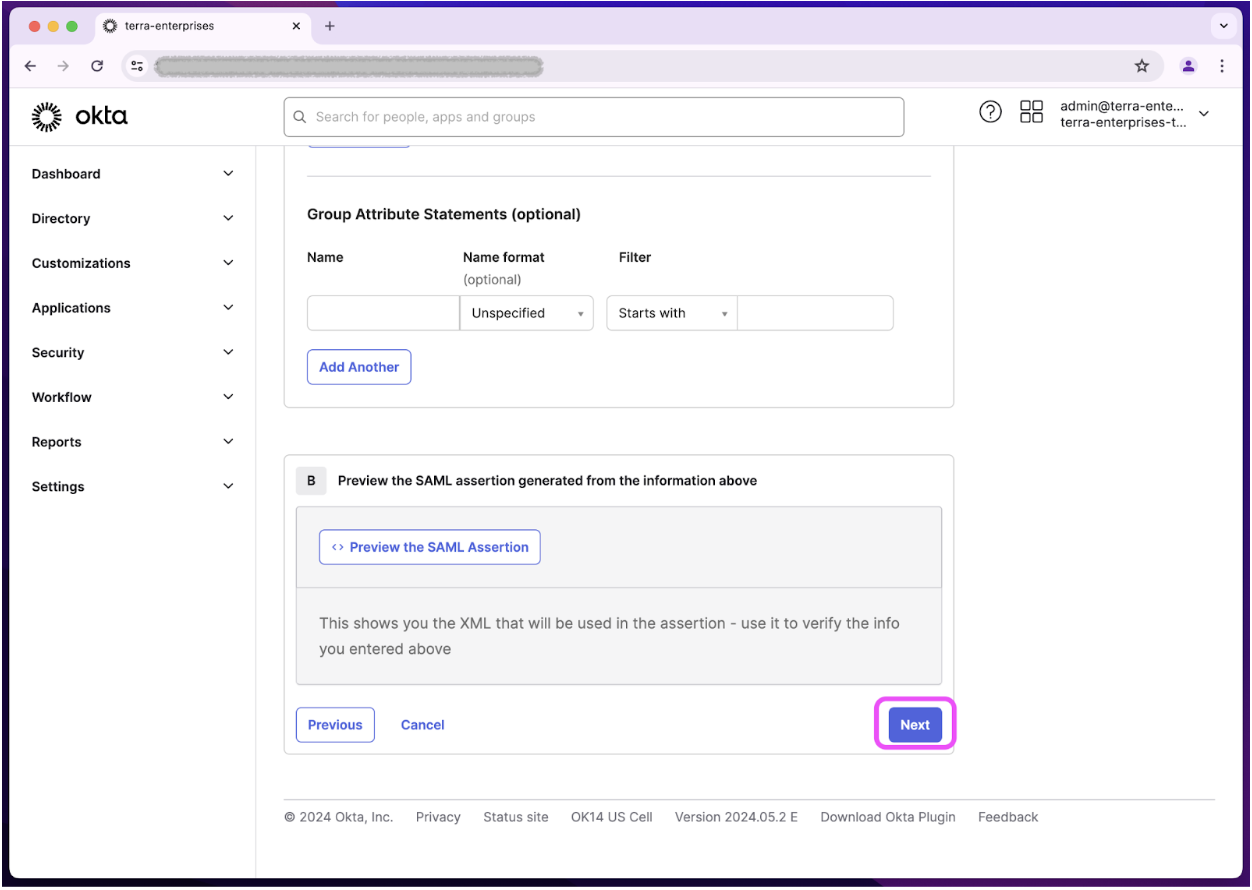
Scroll to the bottom and hit “Next”
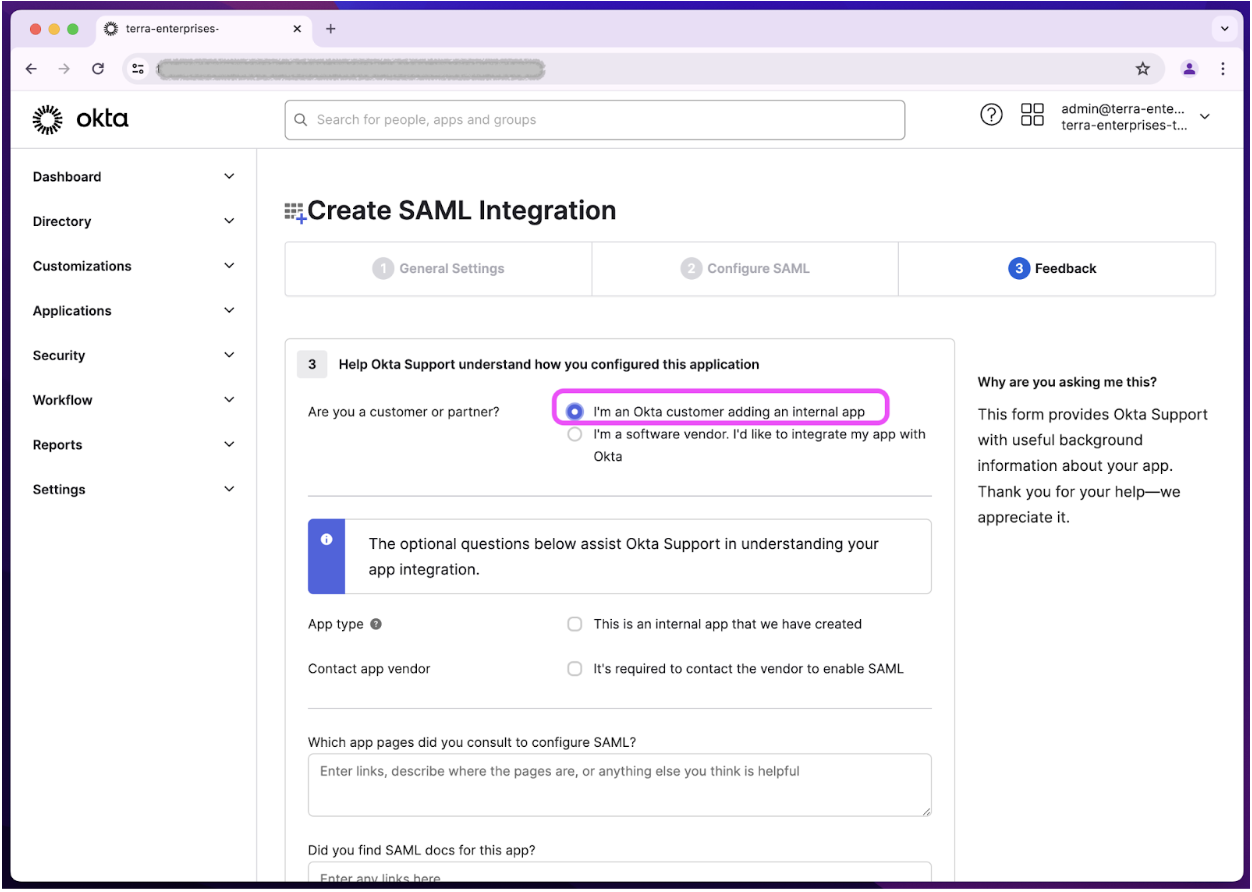
Fill in the optional feedback form for Okta and proceed.
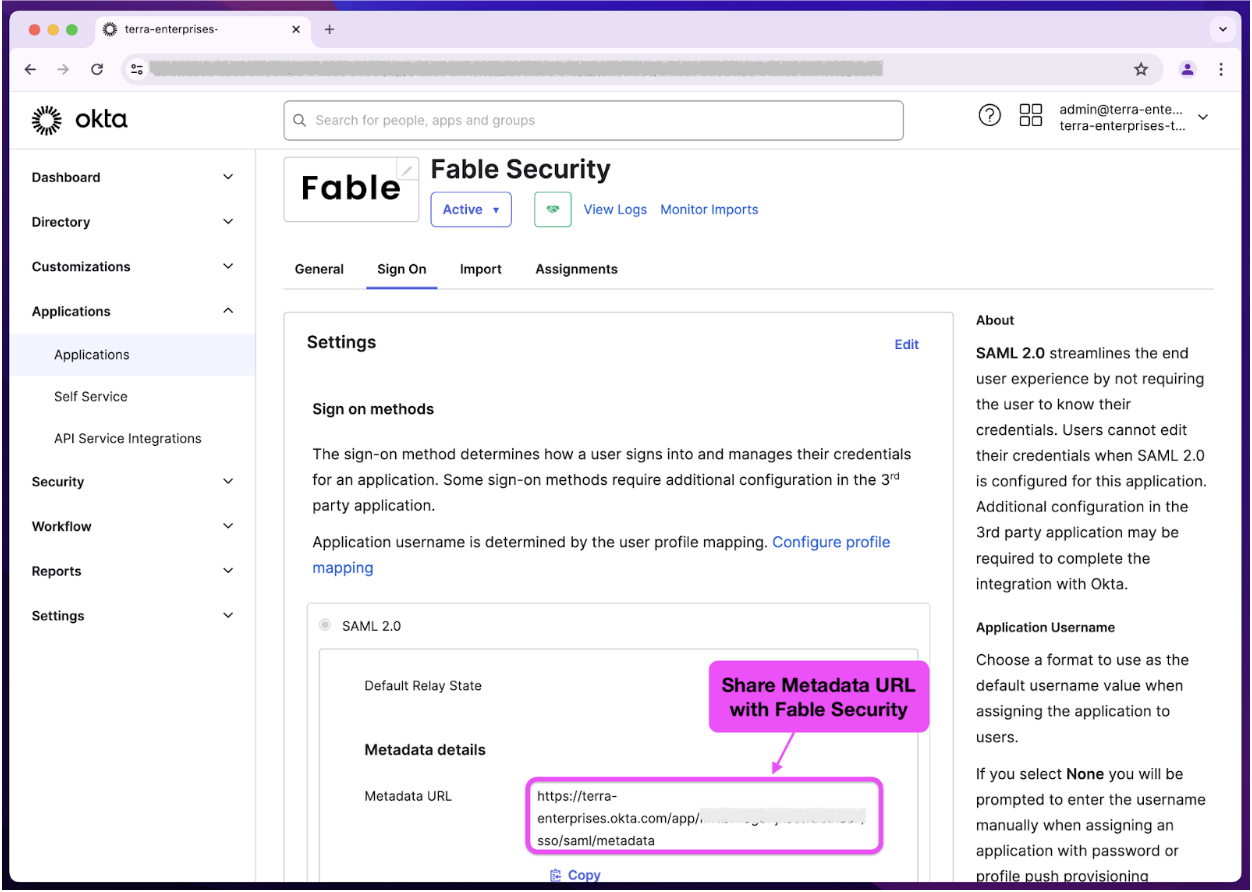
Step 6: Enable SAML 2.0
In the “Sign On” tab
Provide the Metadata URL details to Fable Security to setup SAML SSO connection
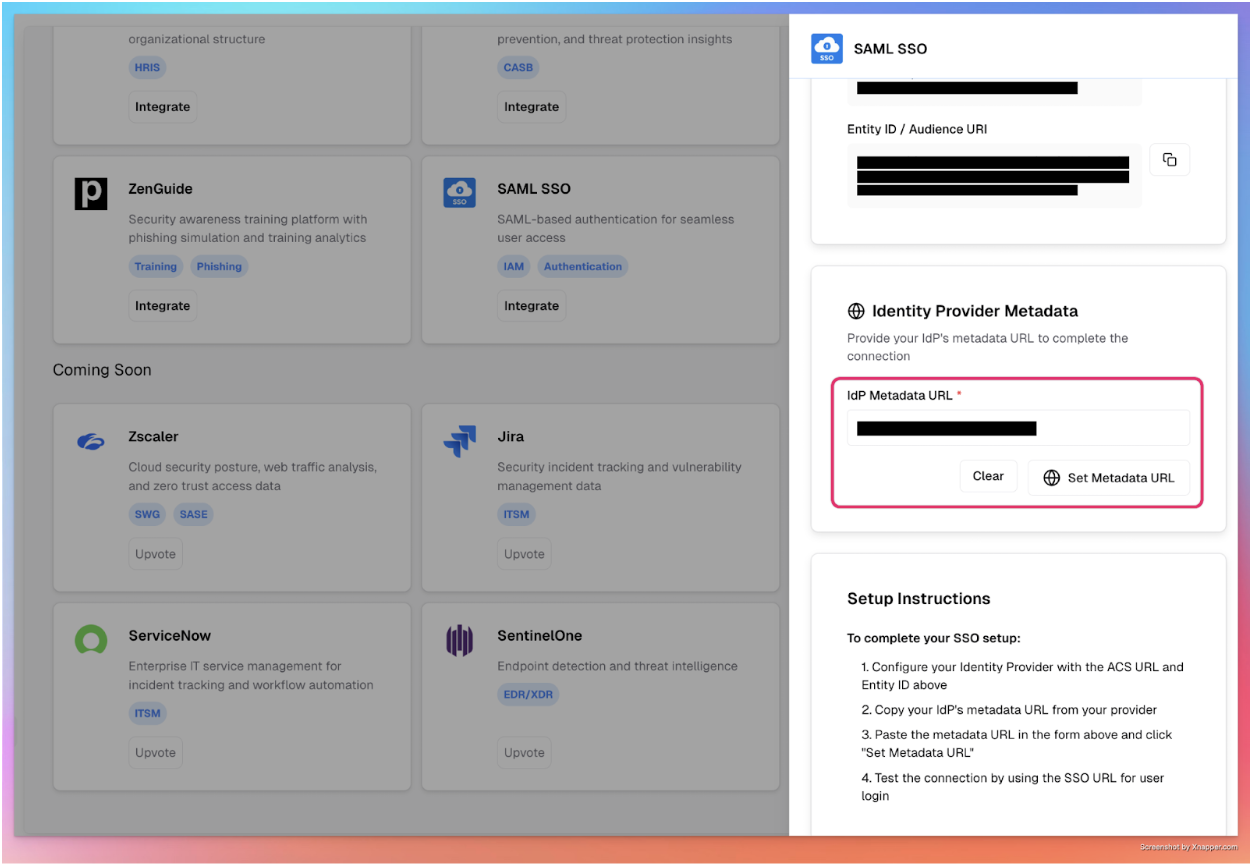
Step 7: Save your metadata URL in Fable Security web portal
Click on SAML SSO card
Input the Metadata URL and hit ‘set metadata url’ button
Step 8: Manage app access
After saving the metadata url successfully, please assign the Fable Security app to everyone.
The Okta SAML SSO integration is now complete! 🎉🎉🎉