CyberArk integration
Last updated: February 23, 2026
Introduction
We integrate with your CyberArk SSO to enable employees to securely access Fable apps. This integration will take 3 minutes.
Integration requirements:
CyberArk SAML SSO
Integration steps
Step 1: Create an app integration
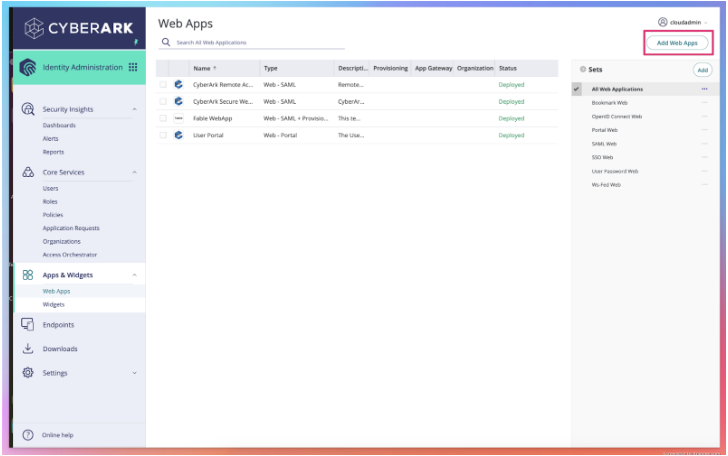
Log into your admin account. Go to “Apps & Widgets” -> “Web Apps” -> Create Web Apps
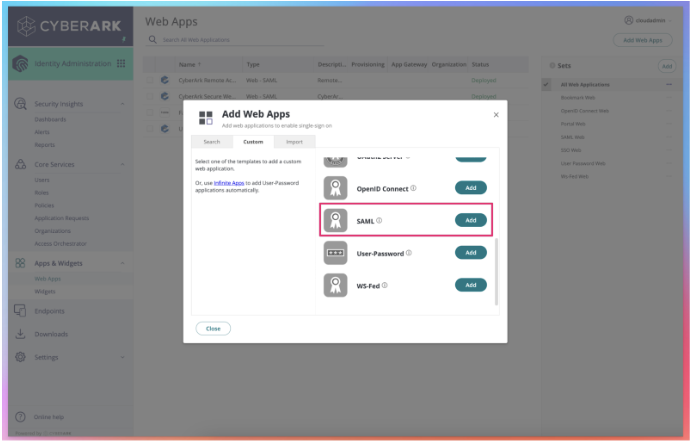
Select “SAML” and ‘add’ to add a custom app.
Step 2: Input Fable Security app information
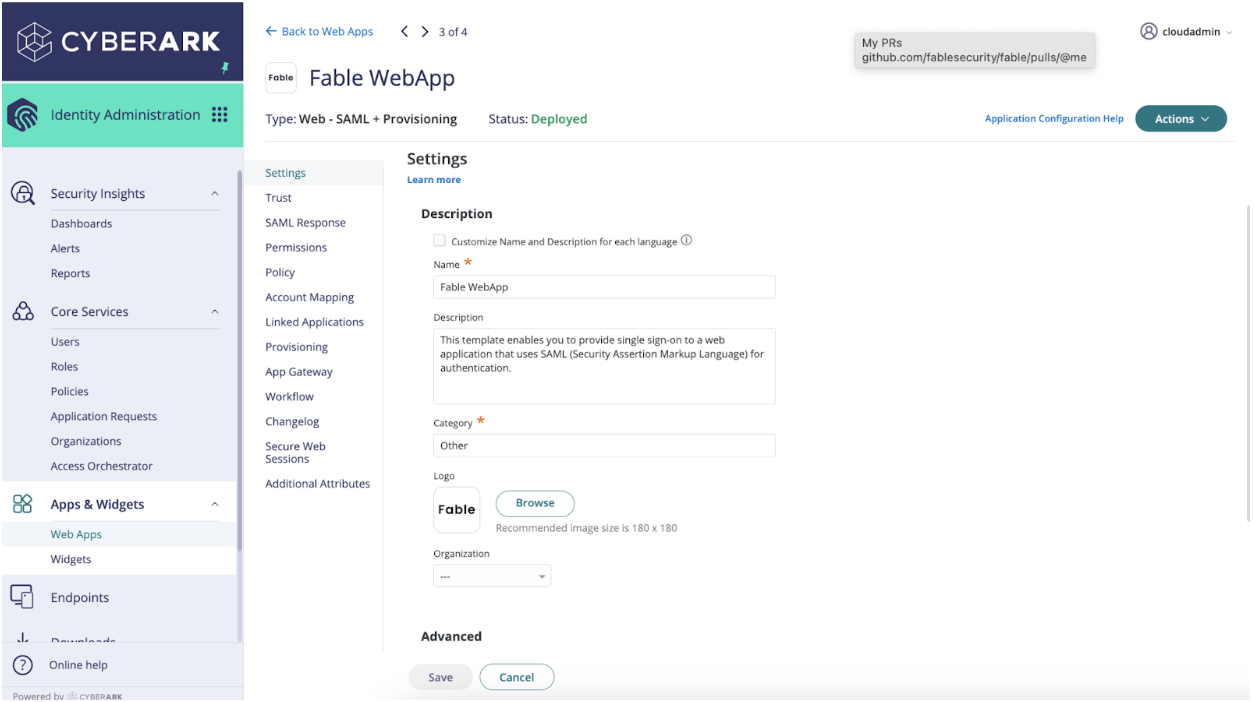
To help your organization identify the Fable application:
Update “Name” with Fable Security
Update logo with: https://assets.fablesecurity.com/icons/fable-logo.png
Hit “Save”
Step 3: Obtain URIs from Fable’s integration page
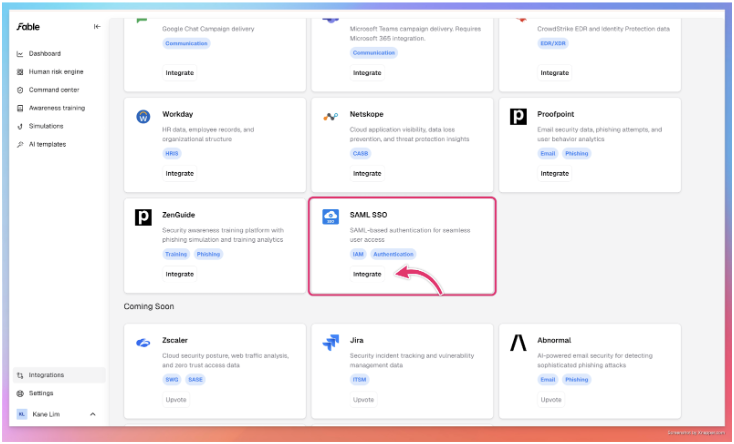
Go to Integrations page: https://app.fablesecurity.com/settings/integrations/
Select “SAML SSO” card
Click on “Add Connection” in the drawer
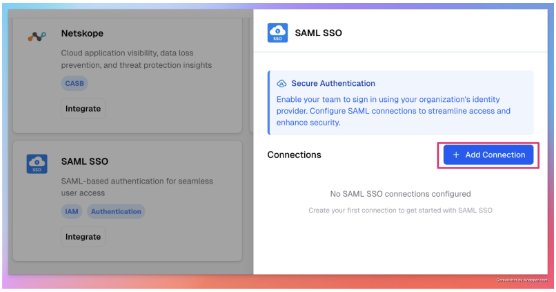
Add “CyberArk” as the connection name
Copy the URLs for your next steps in CyberArk
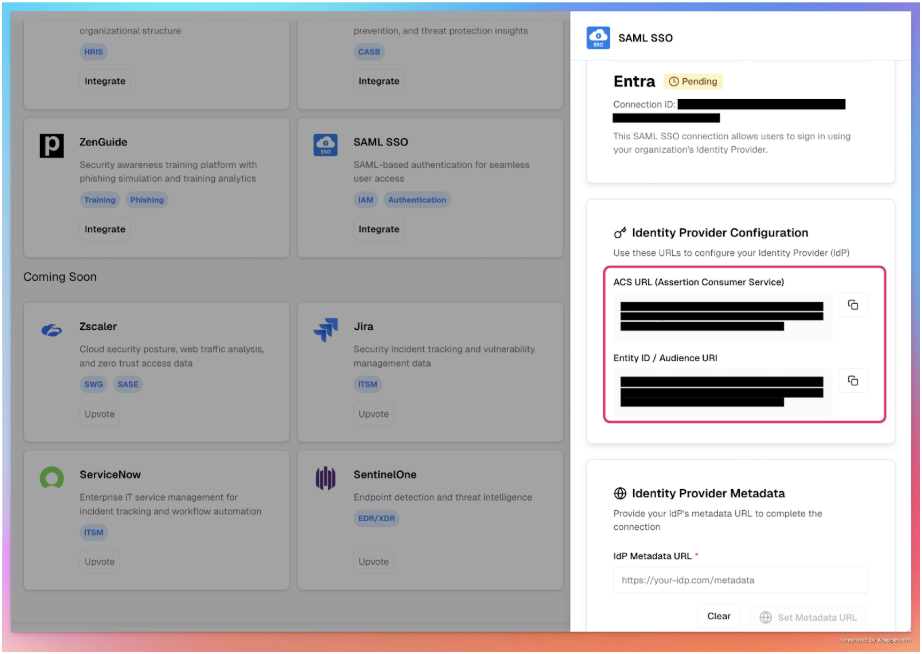
Step 4: Configure SAML connection
Click on “Configuration” and fill in the following fields provided by Fable. This is unique for your organization’s SAML connection to the Fable App.
Fill in “SP Entity ID / Issuer / Audience” and “Assertion Consumer Service (ACS) URL” with the URLs obtained in the previous step.
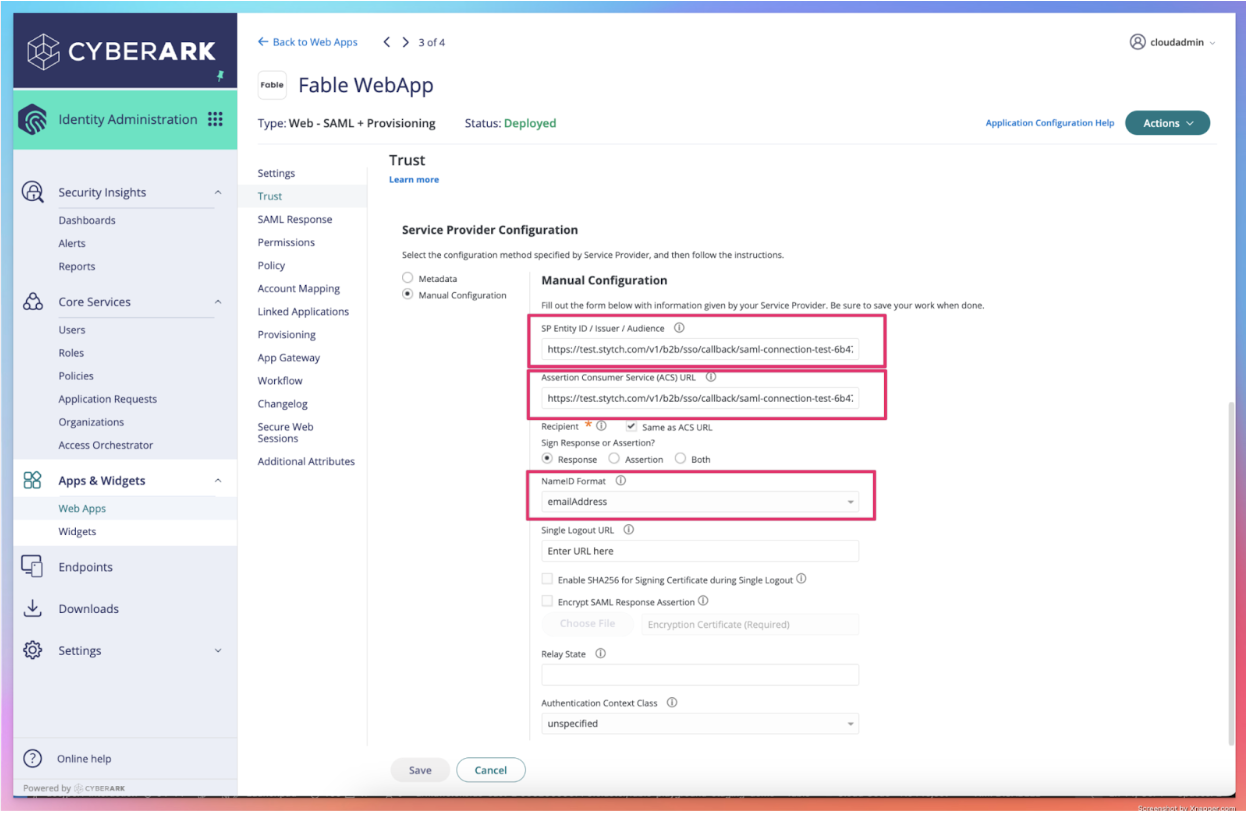
Step 5: Configure the parameters
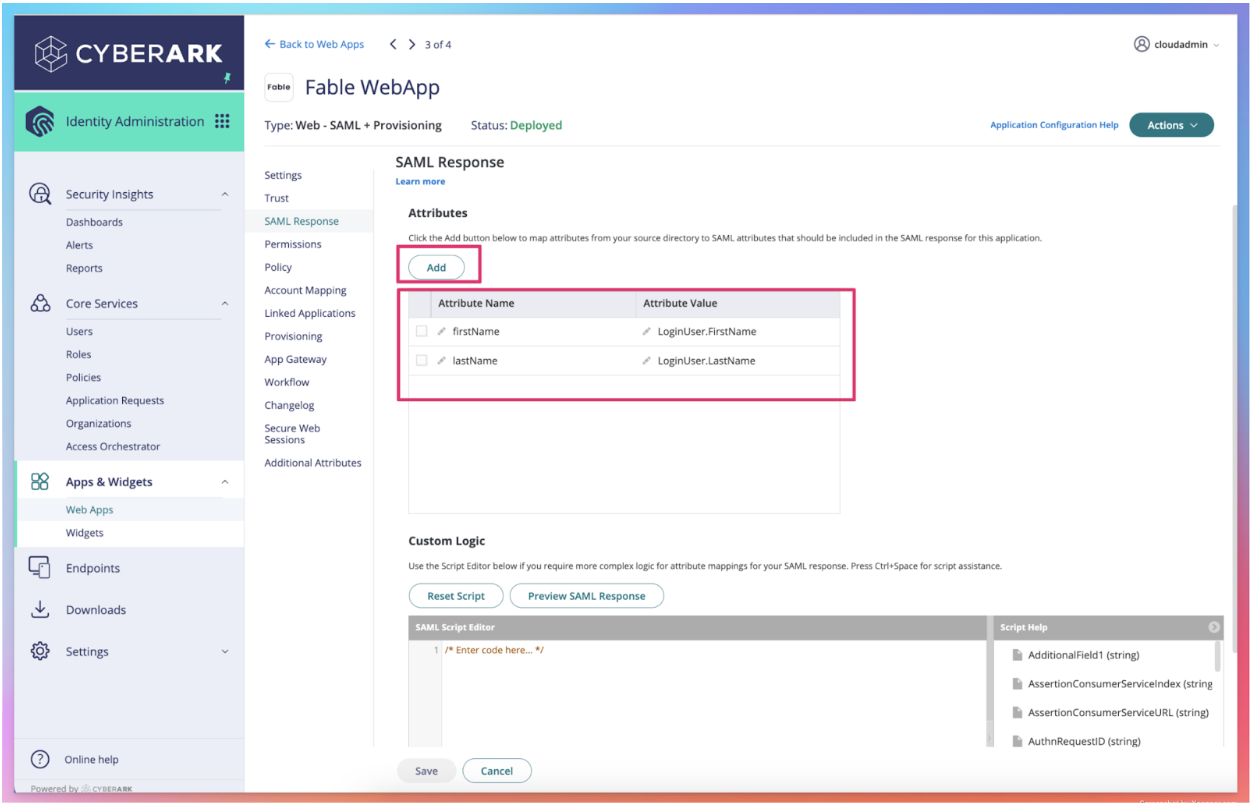
Click on “SAML Response” and add these fields to help Fable identify your employees.
Add these attributes:
firstName = LoginUser.FirstName
lastName = LoginUser.LastName
Step 6: Enable SAML 2.0
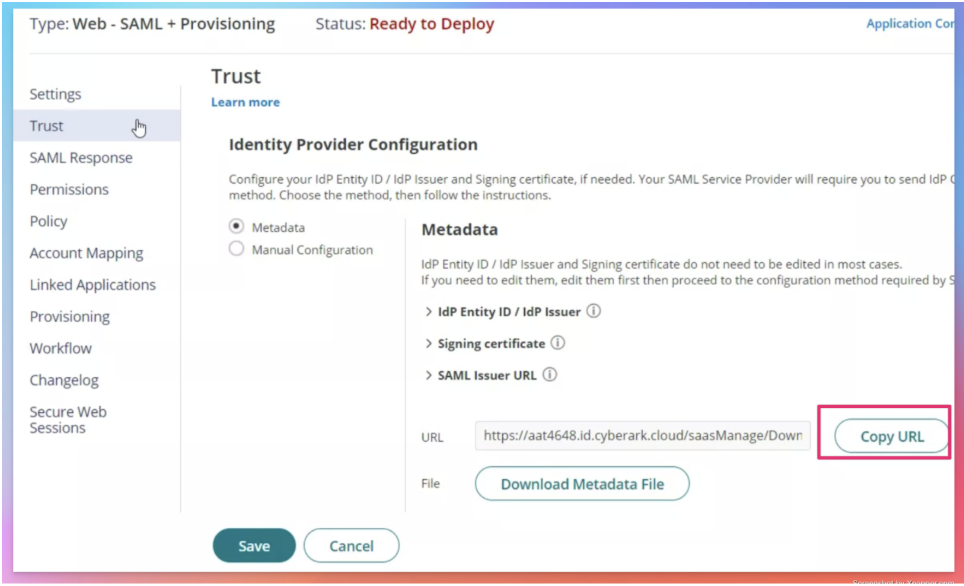
In the same “Trust” section, go to “Identity Provider Configuration” section
Copy and provide the Metadata URL details to Fable Security to setup SAML SSO connection
Step 7: Save your metadata URL in Fable Security web portal
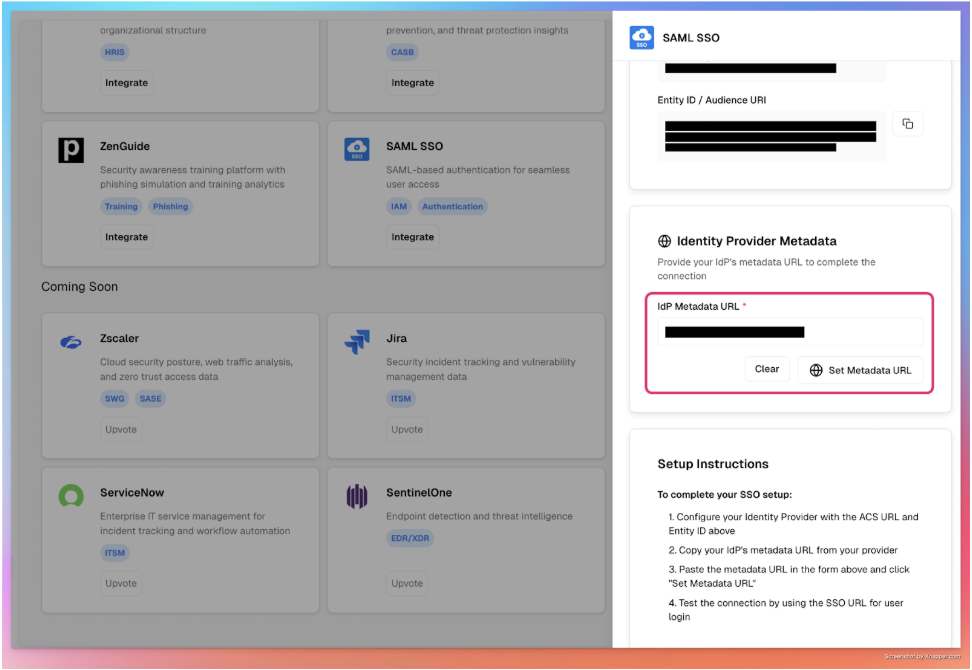
Click on SAML SSO card
Input the “Metadata URL” obtained from previous step and hit ‘Set Metadata URL’ button to save
Step 8: Manage app access
Upon Fable Security setting up the metadata url, please assign the Fable Security app to your users accordingly.
The CyberArk SAML SSO integration is now complete! 🎉🎉🎉
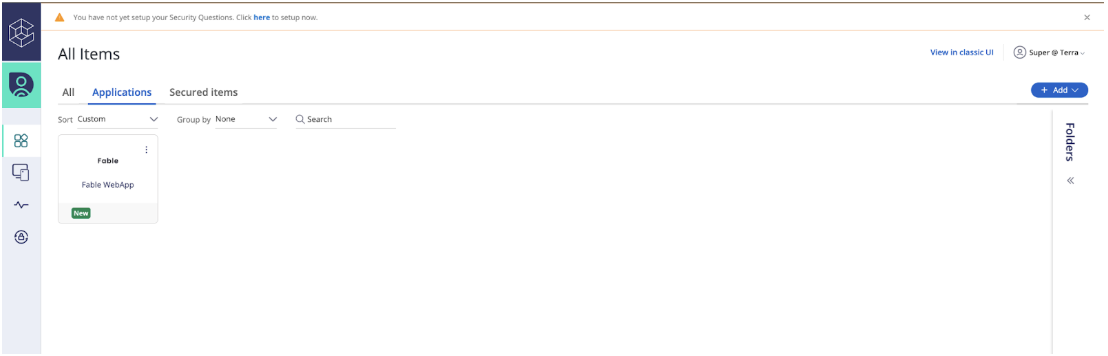
Your users should see the web app as such here: