Microsoft Entra integration
Last updated: February 23, 2026
Introduction
We integrate with your Microsoft Entra SAML SSO to enable employees to securely access Fable apps. This integration will take 3 minutes.
Integration requirements:
Microsoft Entra SAML
Integration steps
Step 1: Create a new application
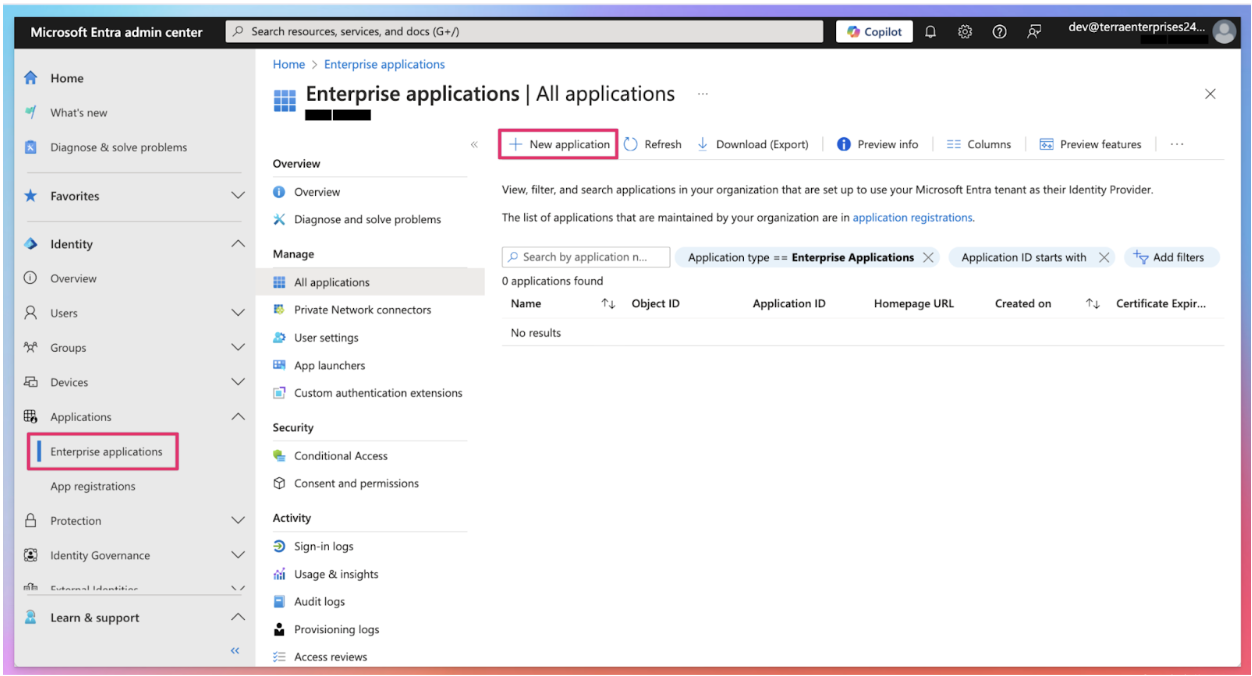
Log into Microsoft Entra Admin Center, navigate to Enterprise applications and select to create a new application.
Step 2: Input Fable Security app information
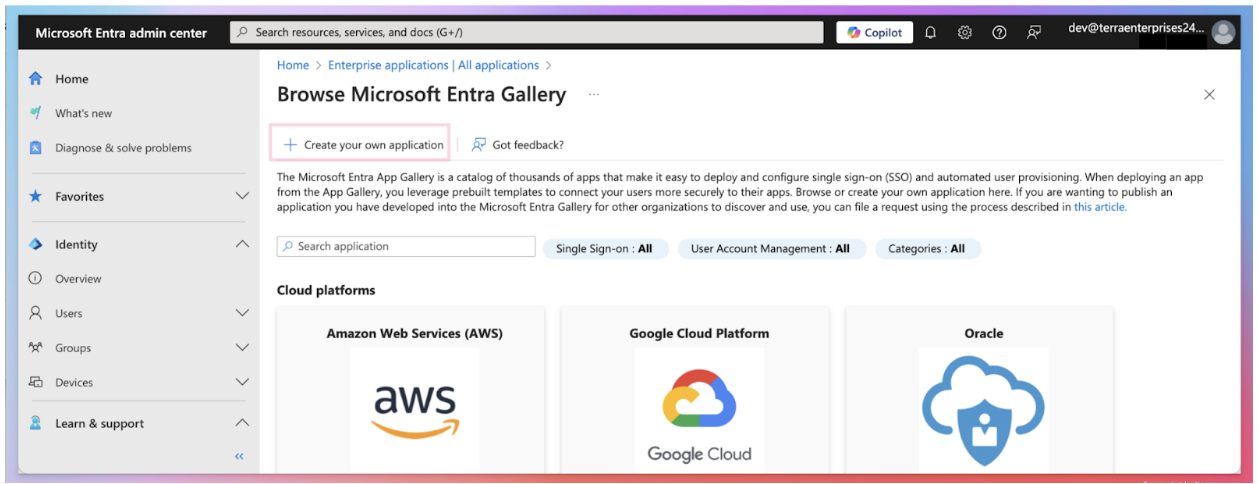
Select Create your own application at the top.
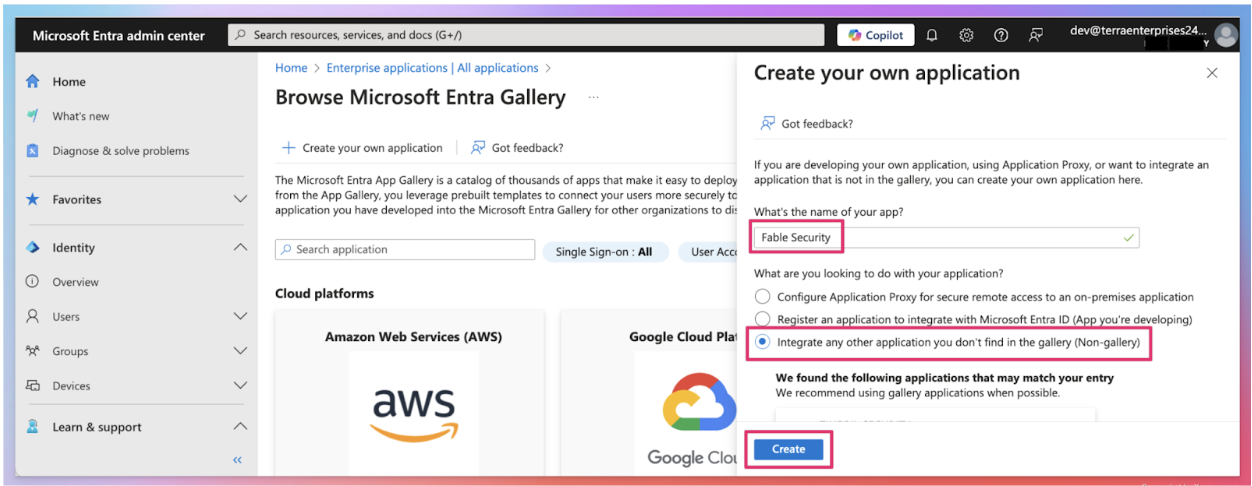
Name your application and select Integrate any other application you don't find in the gallery (Non-gallery) and then click Create.
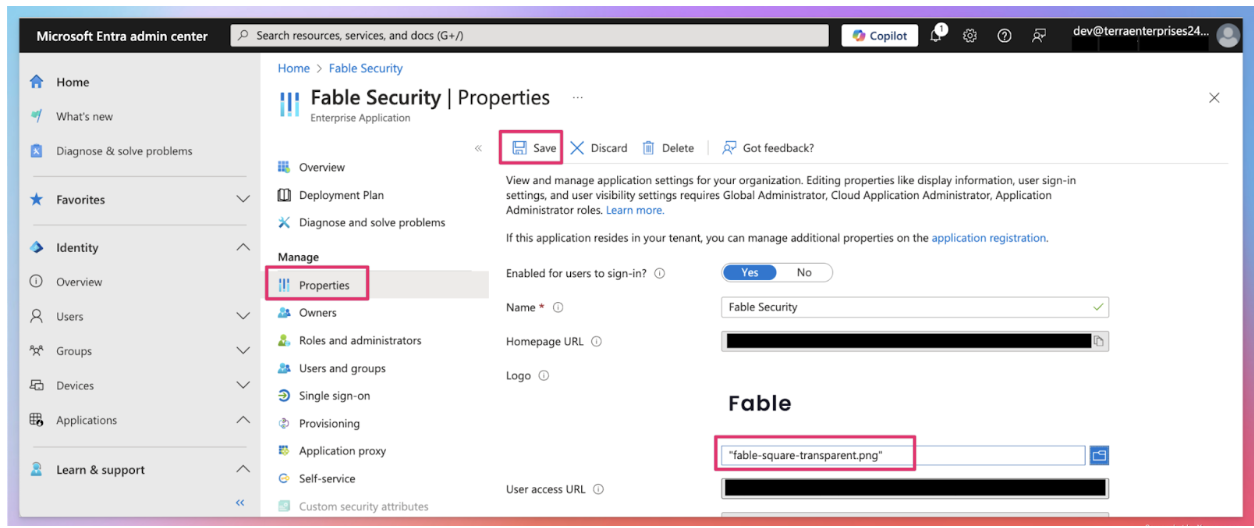
To help your organization identify the Fable application:
Besides having this application’s “Name” listed as Fable Security
Update app icon with: https://assets.fablesecurity.com/icons/fable-square-transparent.png
Hit “Save” and continue.
Step 3: Configure SAML connection
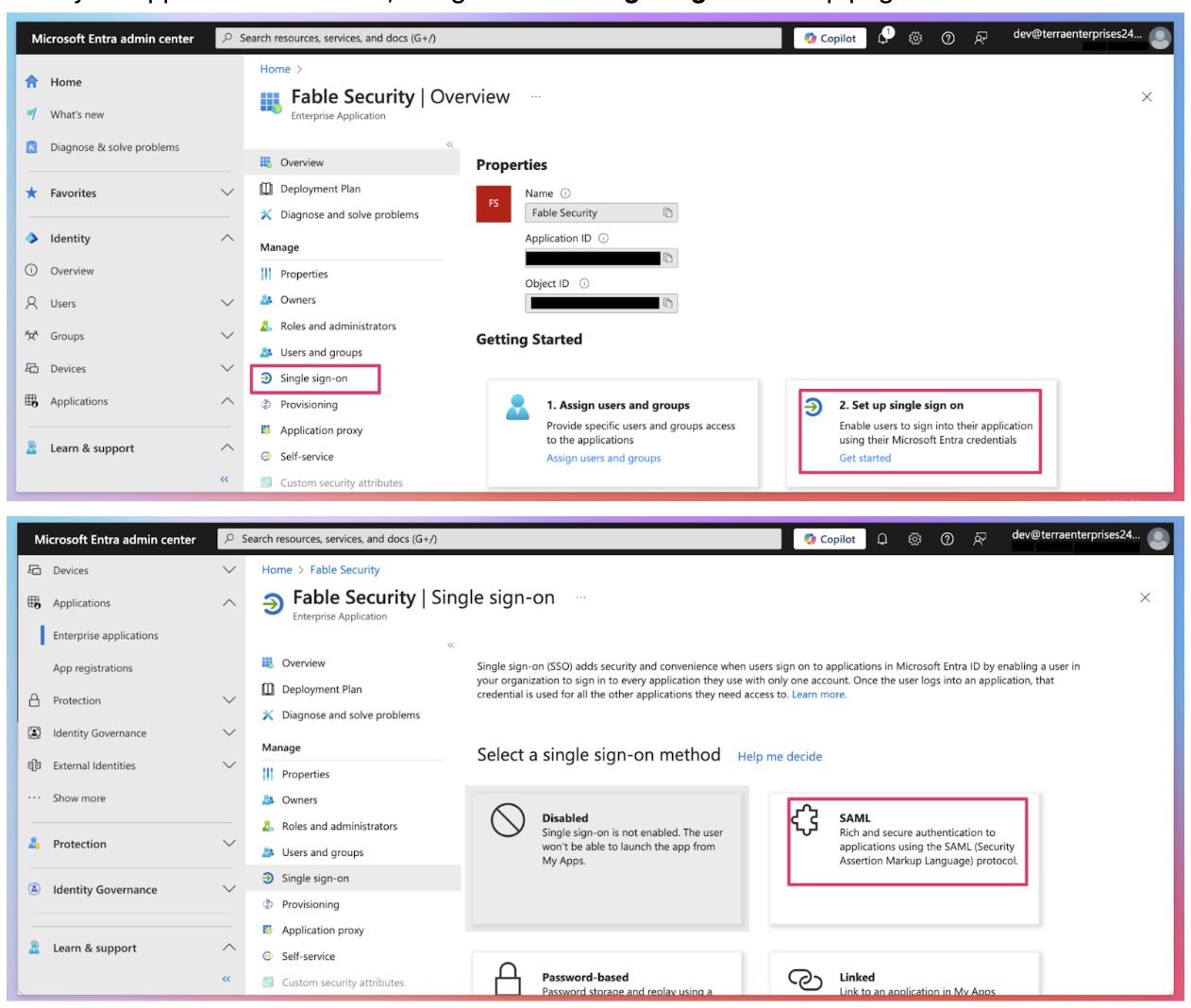
Once your application is created, navigate to the Single Sign-On setup page and select SAML.
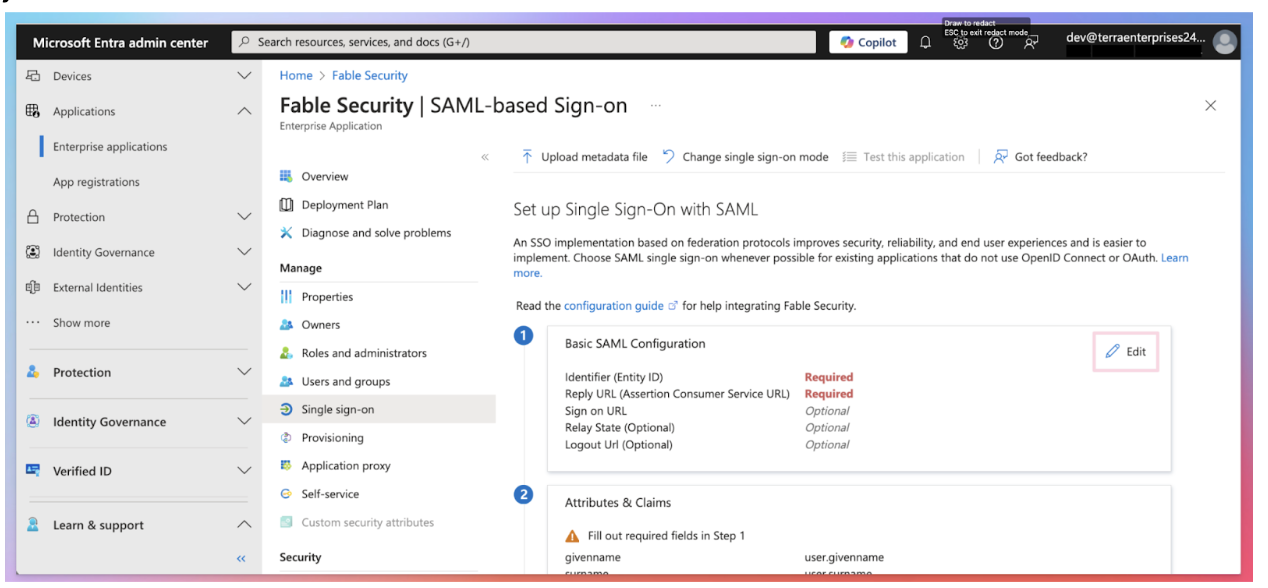
Click Edit on Basic SAML Configuration and add the following values from the SSO Connection you created in Fable’s Web Portal:
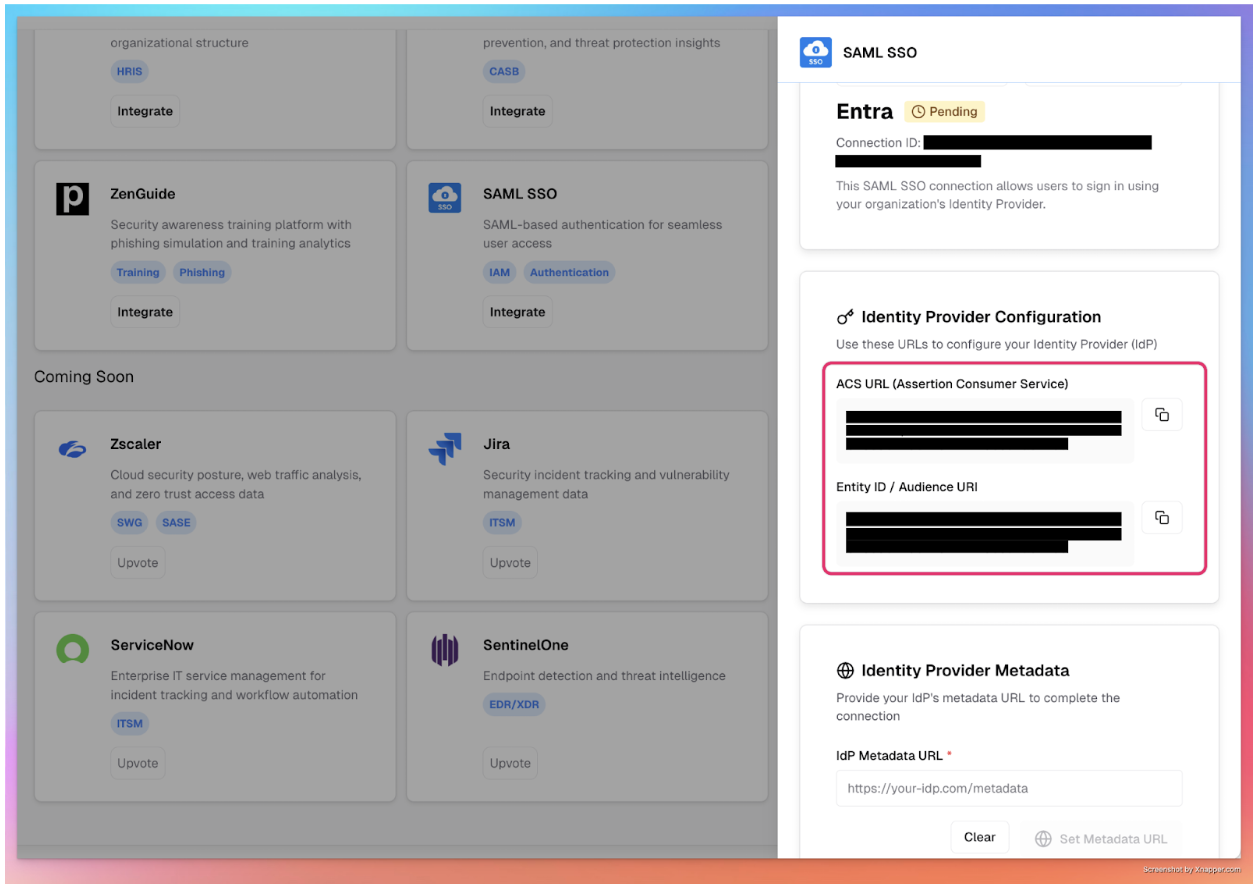
Step 4: Obtain URIs from Fable’s integration page
Go to Integrations page: https://app.fablesecurity.com/integrations/
Select “SAML SSO” card
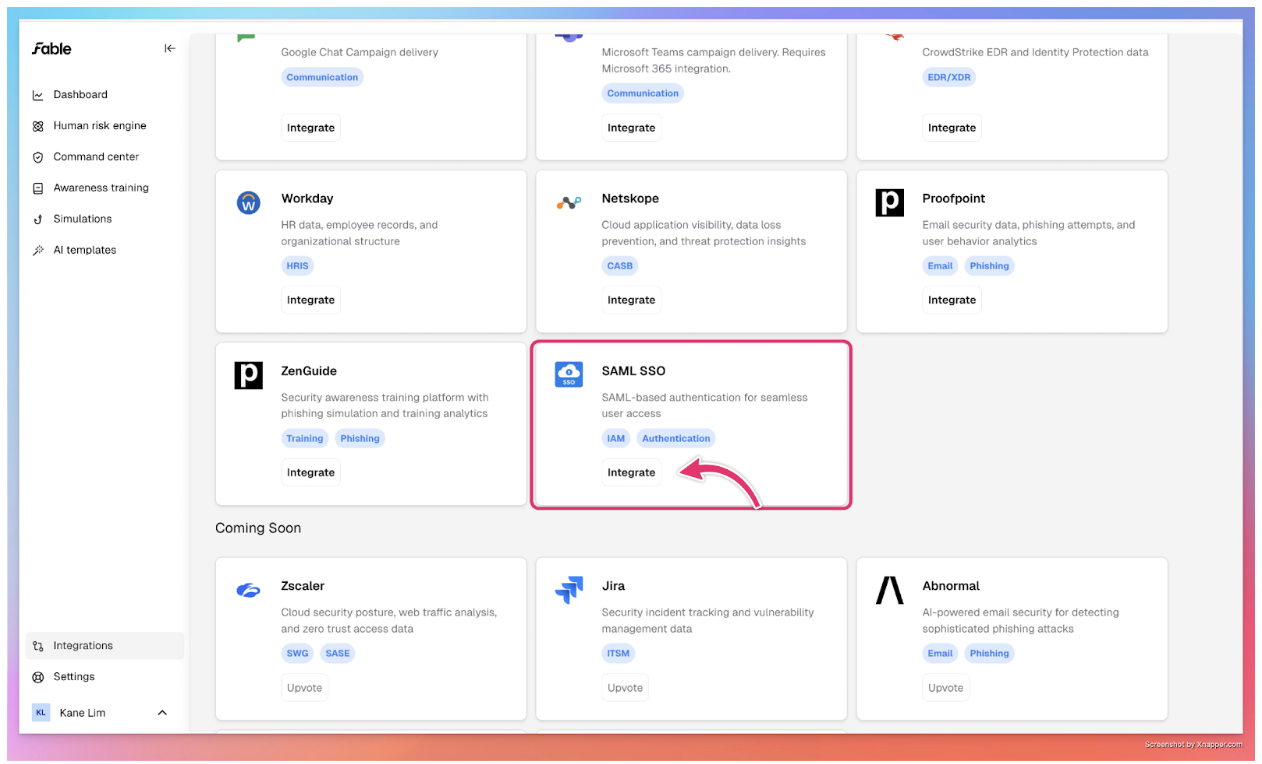
Click on “Add Connection” in the drawer
Add “Entra” as the connection name
Copy the URLs for your next steps in Entra
Step 5: Configure the URLs in Entra
Copy the Entity ID and ACS URL from the previous step in Fable’s web portal into Entra’s SAML setup
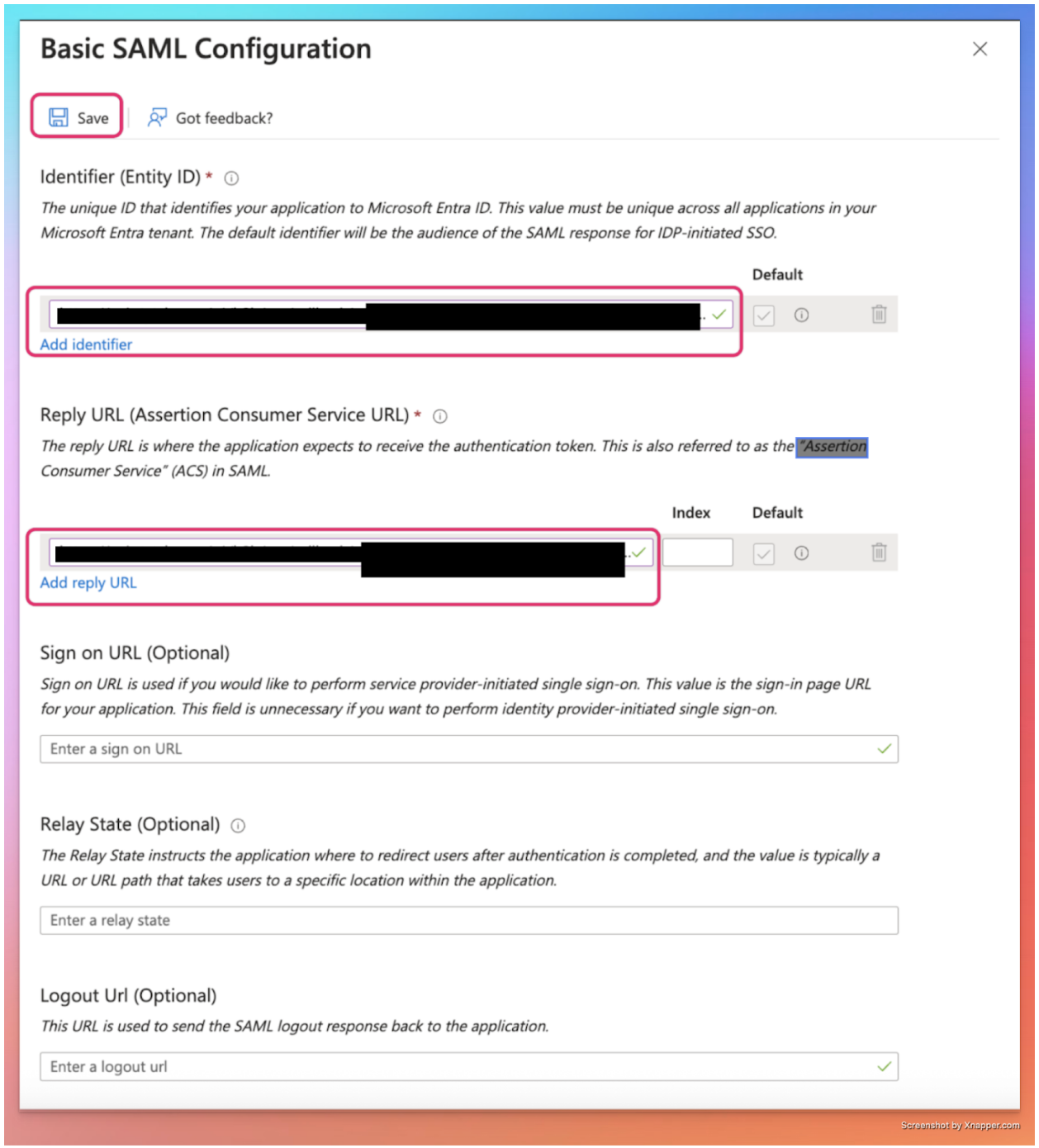
Leave the other values blank and click Save.
Step 6: Configure the parameters
Next, edit the Attributes & Claims section.
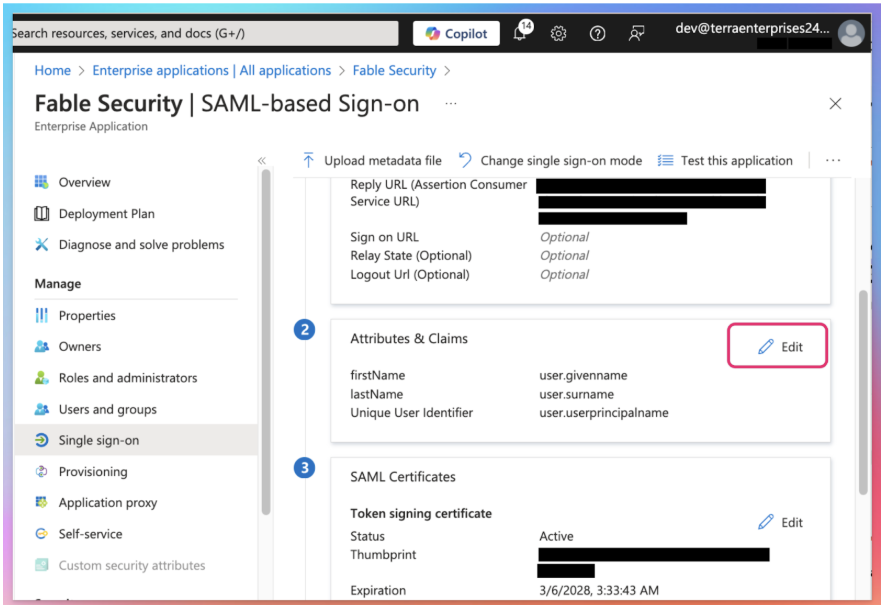
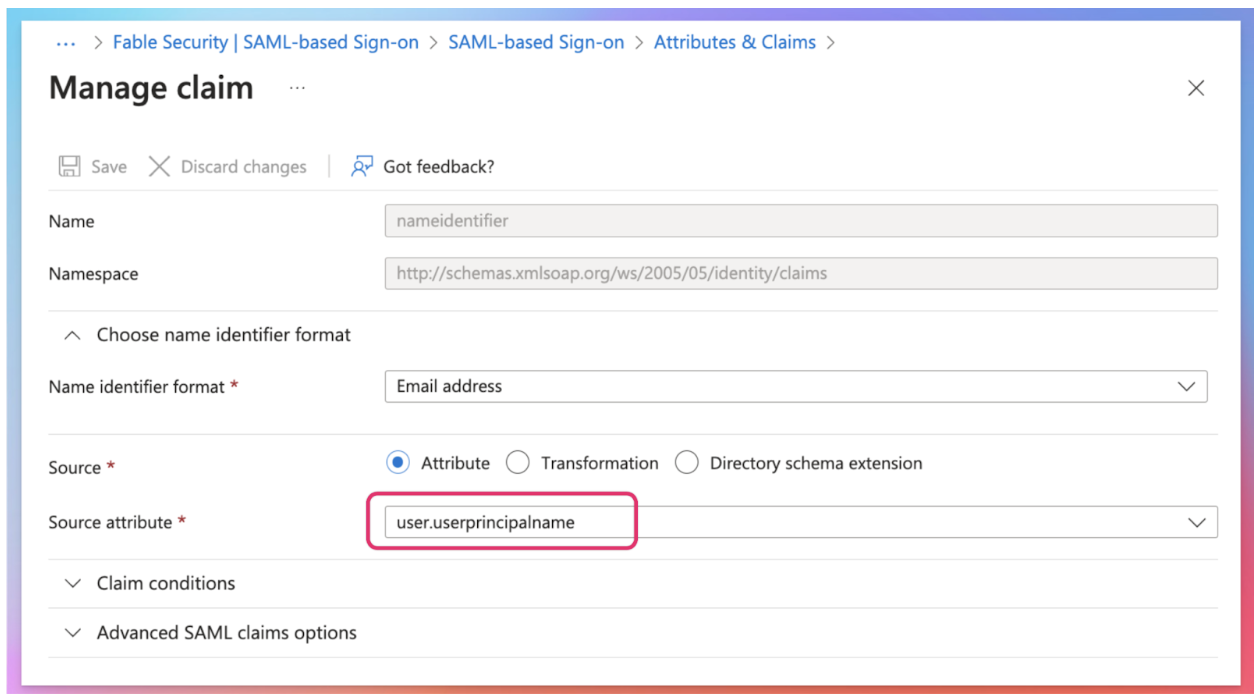
Ensure Unique User Identifier (Name ID) under Required Claim is set up with Source attribute: user.userprincipalname.
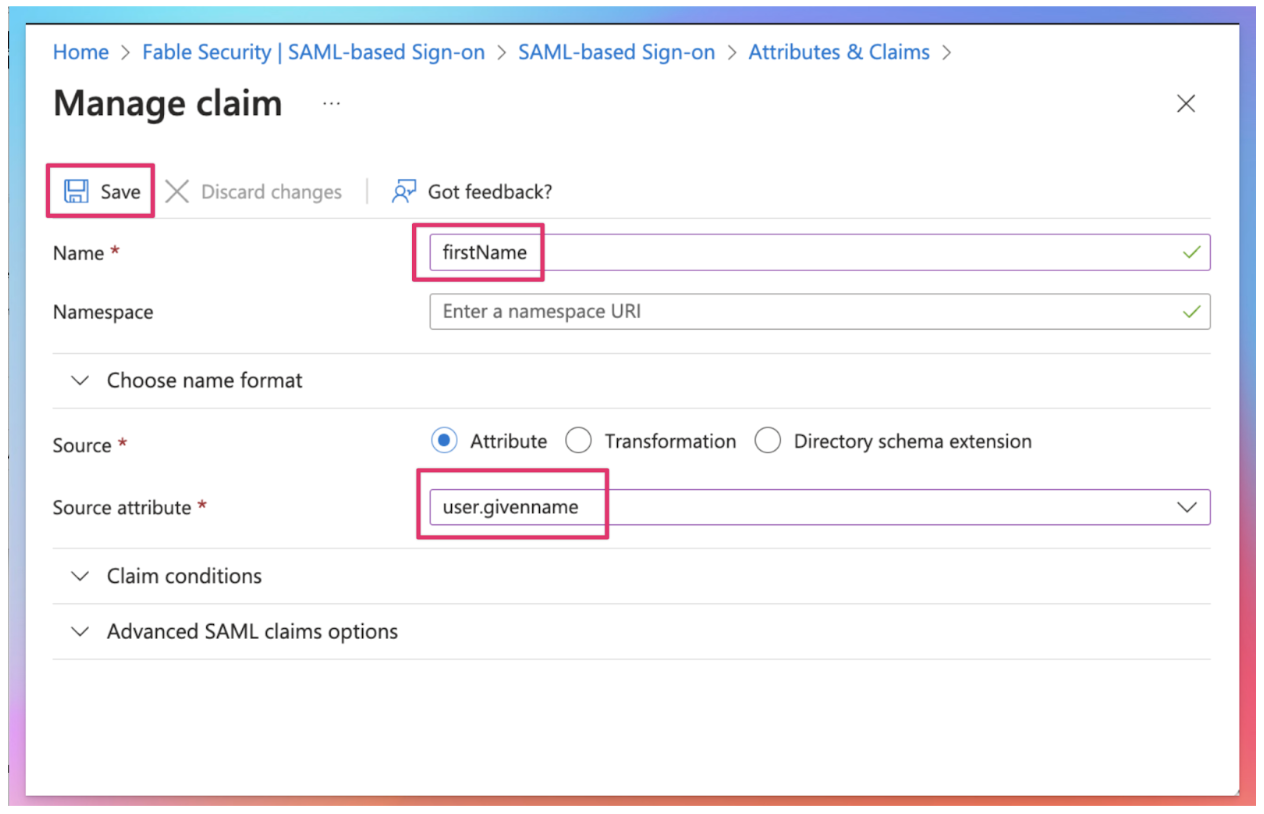
Under Additional claims, edit and delete the default options so you are left with two claims: user.givenname as firstName and user.surname as lastName. Save.
Example: Adding a new claim
Step 7: Enable Entra SAML-based sign-on
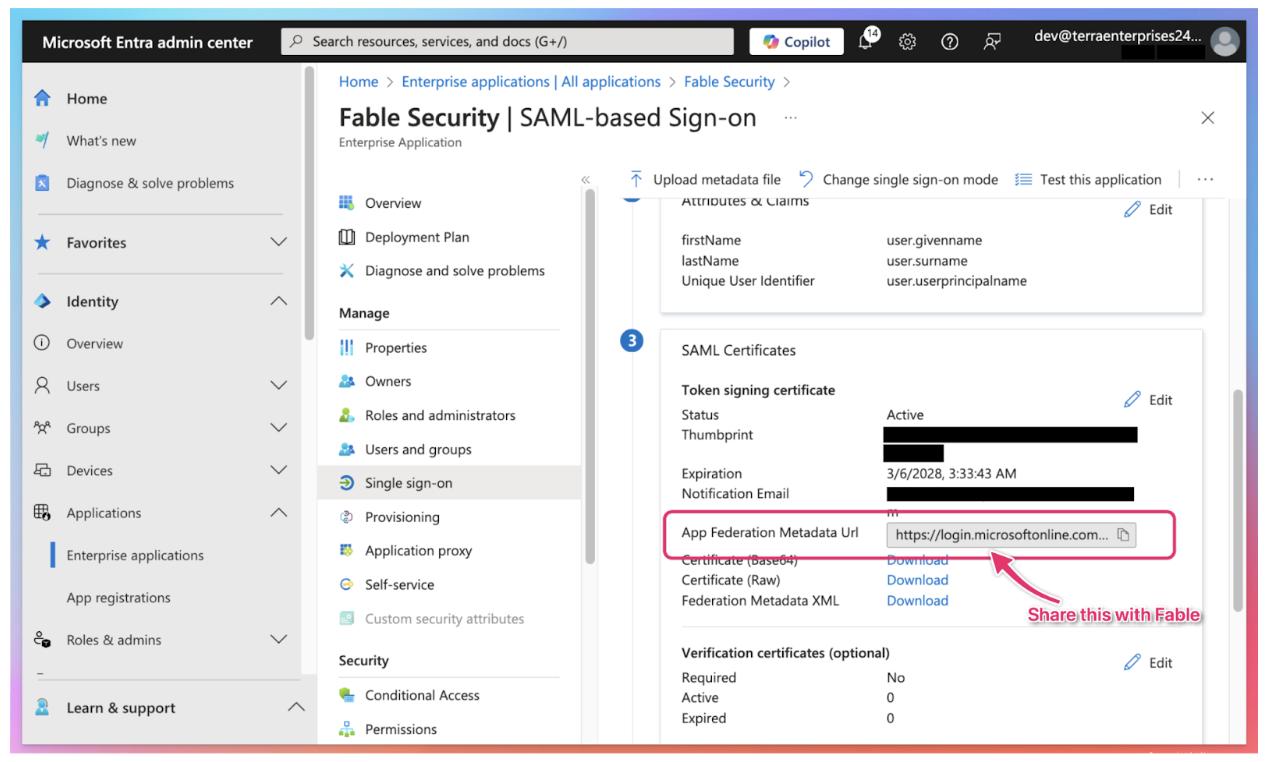
Click on “SSO”
Provide the following details to Fable Security to setup SAML SSO connection: App Federation Metadata Url from the SAML Certificates section in your Entra app.
Step 8: Save your metadata URL in Fable Security web portal
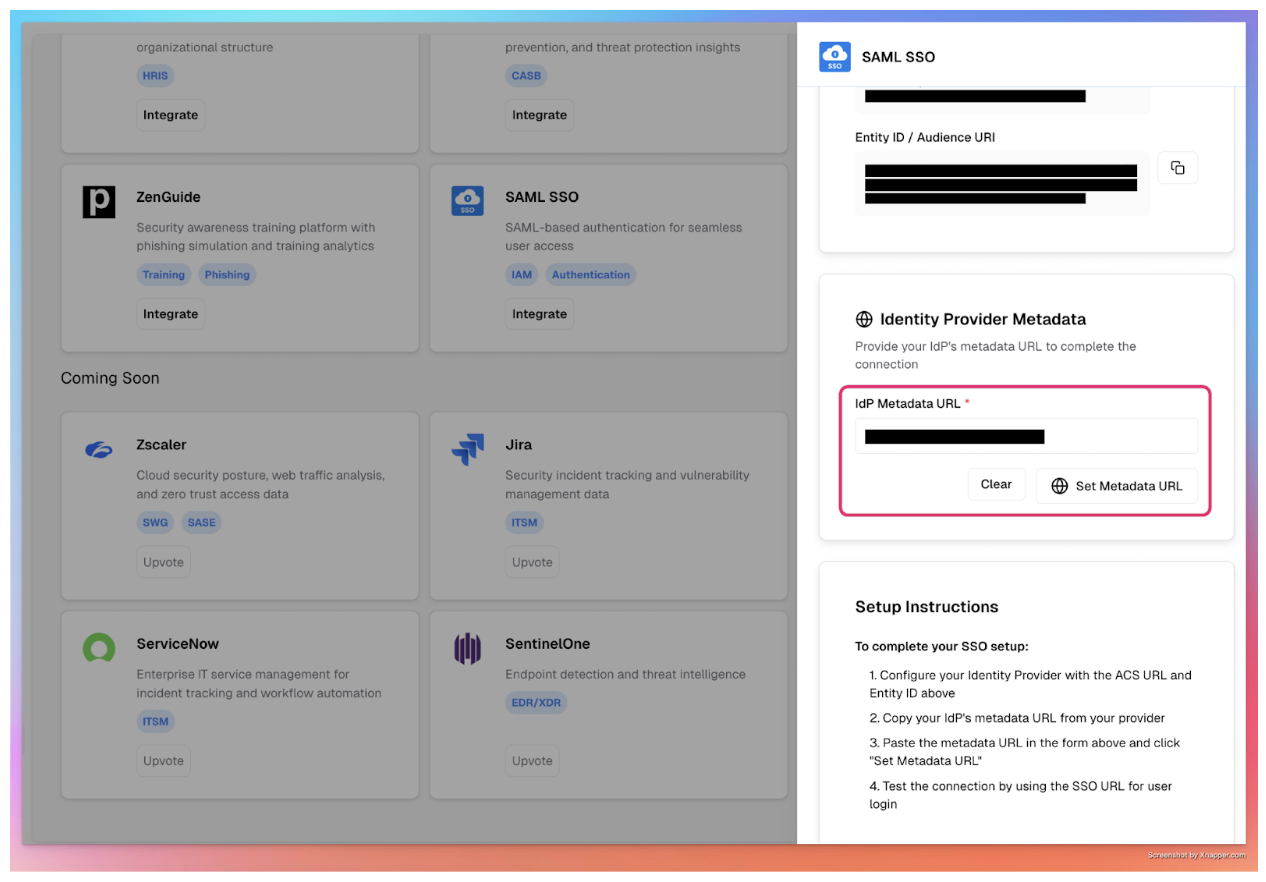
Click on SAML SSO card
Input the Metadata URL and hit ‘set metadata url’ button
Step 9: Manage app access
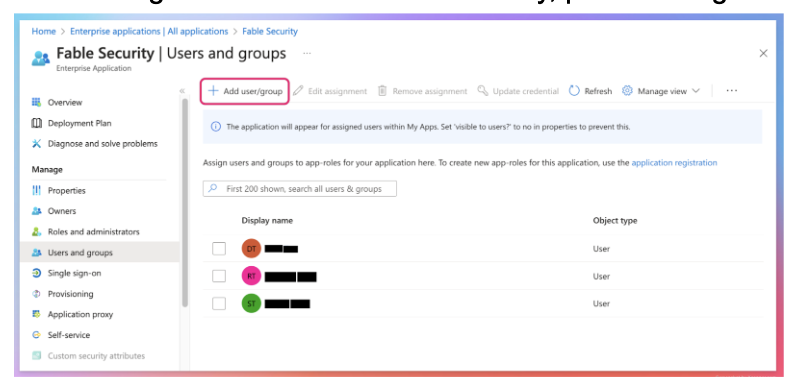
After saving the metadata url successfully, please assign the Fable Security app to everyone.